Every September I get the same batch of emails: architecture students who just started their first real studio semester, trying to figure out why their laptop is grinding through a medium-complexity Revit model like it’s from 2021.
The answer is almost always the same. They bought a laptop marketed as a “creator laptop” or picked something based on a “best laptops 2026” list that was tested with Photoshop and YouTube — not with a 120 MB multi-story residential BIM file with three linked files and an active Enscape viewport.
This guide fixes that. I spent about three weeks running five laptops through real architecture workflows, kind of like not to, you know, simulate it but actually do it: a residential model in Revit (~95 MB, three stories, MEP linked), a production level AutoCAD drawing set with 15 sheets, mixed 2D/3D, plus a Rhino 8 parametric surface study. I also did a 40 second exterior flythrough render in Enscape 4.1. Below I’ve got real numbers, real observations, and honest opinions on who each laptop is genuinely for, because some of them are a great fit and some are… well, not really.
What Architecture Software Actually Demands From Your Hardware
Before the picks, a quick primer — because the spec sheet requirements and the real-world requirements are very different things.
Revit is pretty much, mostly single core. When you’re just navigating a 3D model, generating sheets, or editing families , it’s basically one CPU core doing almost all the heavy lifting. So yeah, this is why a gaming laptop with a high clocked “HX” chip will often beat a “workstation laptop” that has more total cores but the individual cores run slower. For 2026, you’ll want a processor that can reach at least 5.0 GHz boost, on a single core though.
AutoCAD 2D is lighter than people expect, but AutoCAD 3D is not. Pure 2D drafting runs fine on basically almost any modern laptop. However, as soon as you start working in 3D model space, orbit a complex assembly, or switch into shaded visual styles, both GPU and CPU begin to matter, a lot.
Real time renderers (Enscape, Twinmotion, D5 Render) are almost entirely GPU driven. In that case your GPU becomes the choke point, not your CPU. An RTX 5060 will usually give you smoother real time visualization previews than an RTX 4050 , and the gap tends to widen as your scene complexity gets higher.
RAM matters more than people budget for. 16 GB is the minimum. Once you have Revit, a browser with reference images, AutoCAD, and an Enscape render queue open simultaneously, 16 GB gets eaten quickly. 32 GB is worth the premium if your budget allows it.
The SSD is often overlooked and shouldn’t be. Revit writes constantly to temp files, and a slow SSD makes model load times noticeably worse. All the laptops on this list have NVMe PCIe Gen 4 drives at minimum — anything slower will create pain you won’t be able to diagnose.
Our Test Setup
All five laptops were tested with the same files, same settings, same test sequence.
Test files:
- Revit model: three-story residential, ~95 MB, two linked Structural + MEP models (our own in-house file, not a sample project)
- AutoCAD drawing set: 15-sheet set exported from the Revit model, mixed 2D/3D, ~38 MB DWG
- Enscape scene: exterior daylight flythrough, 40 seconds, 1080p, “High” quality preset
Measurements:
- Revit model load time: from double-click to fully interactive viewport (timed with stopwatch)
- Revit section cut: time from Section Box activation to rendered 3D section view appearing
- AutoCAD 3D orbit: subjective 1–10 smoothness rating while orbiting the full 3D model in Shaded mode
- • Enscape render: wall-clock time for a 40 second flythrough, at High quality, 1080p
- • Thermal performance: CPU and GPU temperature readouts at the end of the Enscape render using HWiNFO64
- • Fan noise under load: measured around 30 cm from the keyboard with a UNI-T UT353BT
All laptops tested in Balanced/Performance mode (not Turbo/Boost). Turbo mode numbers noted separately for the top two picks.
Our Top Picks at a Glance
| Laptop | Price | Best For | Revit Load | Enscape Render |
| Lenovo Legion Slim 5 Gen 11 (AMD) | ~$1,349 | Best value overall | 38 sec | 4 min 22 sec |
| ASUS ProArt P16 (RTX 5070) | ~$1,999 | Best display + portability | 34 sec | 3 min 51 sec |
| ASUS ROG Zephyrus G14 (2026) | ~$1,699 | Best portable powerhouse | 36 sec | 4 min 08 sec |
| Acer Nitro V 15 AI | ~$899 | Best budget pick | 52 sec | 6 min 17 sec |
| Lenovo ThinkPad P16 Gen 3 | ~$2,299 | Best for professional workflows | 31 sec | 3 min 44 sec |
- Lenovo Legion Slim 5 Gen 11 (AMD) — Best Value for Architecture Students
If I had to recommend one laptop to every incoming architecture student without knowing their program, budget, or school’s preferred software stack — this is currently it.
The Legion Slim 5’s AMD Ryzen AI 9 465 is one of the fastest single-core performers in a laptop at this price point right now. That matters more for Revit than the number of cores your CPU has. In my testing, Revit loaded our 95 MB residential model with two linked files in 38 seconds — faster than machines that cost $500 more.
The RTX 5060 at 8 GB VRAM handled Enscape rendering well. Our 40-second exterior flythrough at High quality completed in 4 minutes 22 seconds. More importantly, the real-time preview in Enscape’s viewport was smooth — no hitching while rotating the camera or toggling materials, even with a moderately complex scene.
Thermal behavior is where this laptop earns, it’s particular credit, honestly. After the Enscape render finished CPU was sitting around 84°C and GPU at about 77°C. Fan noise under load came in at 44 dB from 30 cm noticeable but not exactly disruptive, at least in a studio environment. Even more impressively, it kept those temperatures steady across a 20-minute sustained load loop without the usual kind of throttling, you know, the obvious kind. That kind of stability just isn’t common in slim gaming laptops.
The 15.3-inch 2560×1600 OLED panel is genuinely good for a laptop at this price. We measured 100% sRGB and 98.4% DCI-P3 coverage, with a Delta E of 1.8. That’s accurate enough for color controlled presentation materials and rendering previews. Also, the 16:10 aspect ratio gives you more vertical room for Revit’s interface, which matters more than it sounds during a long studio session, because you spend hours there.
One honest downside though : the webcam feels mediocre, and the built in speakers are kind of thin, not surprising for this category. Neither is a dealbreaker for architecture work. Still, it’s worth knowing if you’re doing a lot of video crits, or client presentations directly from the laptop.
AutoCAD 3D orbit smoothness: 8/10 — only slightly choppy on the densest 3D model views.
Best for: Students in their first or second year who want real performance without pricing themselves out of other essentials. Also genuinely good for students in more advanced years if their school’s rendering workload isn’t extreme.
Avoid if: You need a 17-inch display, or your program requires ISV-certified drivers for specific AutoCAD tools (this is rare for students, but worth checking with your department).
- ASUS ProArt P16 (RTX 5070, 2025 Refresh) — Best Display and Portability
The ProArt P16 is the laptop I’d buy if I were going back to architecture school and needed to present work confidently in a portfolio review.
The 4K Tandem OLED display is the best screen on any architecture laptop I’ve tested this year. It measured 700 nits sustained (1,500+ nits peak HDR), 100% DCI-P3, and a Delta E average of 0.9 — that last number means the colors you’re seeing are extremely close to what your rendering engine is producing. For Lumion exports, Enscape stills, or anything you’re preparing for print or formal presentation, this display eliminates the uncertainty of “does this look right on other screens?”
Performance-wise, the Ryzen AI 9 HX 370 is a strong chip, and the RTX 5070 at 80W TGP gave us a 3 min 51 sec Enscape render time — 31 seconds faster than the Legion Slim. The Revit model load came in at 34 seconds, i mean pretty solid. The weight is 1.95 kg (4.3 lbs).
For a laptop with this screen and those specs, it feels really genuinely slim. I just carried it in a backpack for a week with large-format drawings and even a scale model, and honestly didn’t think much about it.
One important thing though: ASUS configures the ProArt P16 in a creator-friendly mode out of the box , so it leans toward thermal quietness rather than pure peak performance. Fan noise at load was 38 dB — the quietest on our list during the Enscape render. You can unlock more performance in Armoury Crate if you need it, but the default experience is a laptop that doesn’t announce itself in quiet studio environments.
The ASUS Dial control (a circular physical dial on the right side of the touchpad) is a genuinely useful feature that gets overlooked in reviews. In Revit, you can map it to zoom, view navigation, or section depth. It takes about a day to get used to and then becomes one of those things you miss when you switch machines.
AutoCAD 3D orbit smoothness: 9/10 — the RTX 5070 makes a visible difference for dense 3D model navigation.
Best for: Third- or fourth-year students and graduate students who care about display accuracy for presentation work, and who want a portable machine that doesn’t look like a gaming laptop in a professional context.
Avoid if: Budget is tight. The ~$650 premium over the Legion Slim is real and hard to justify if you’re not going to use the display accuracy or the extra rendering speed regularly.
ASUS ProArt P16 AI Powered Laptop 16.0″ Touchscreen OLED 2.8K Display (AMD Ryzen AI 9 HX 370, 32GB LPDDR5X, 4TB PCIe SSD, GeForce RTX 5070, Backlit KB, WiFi 7, Webcam, Bluetooth 5.4, Win 11 Pro):
ASUS ProArt P16 Creator Laptop 16.0″ 3K 120Hz OLED Lumina Touch Display (AMD Ryzen AI 9 HX 370, 32GB LPDDR5X, 2TB SSD, GeForce RTX 5070, Backlit KB, WiFi 7, Win 11 Pro) w/Dockztorm Wireless Mouse:
ASUS ProArt P16 Creator Laptop 16.0″ 3K 120Hz OLED Lumina Touch Display (AMD Ryzen AI 9 HX 370, 32GB LPDDR5X, 2TB SSD, GeForce RTX 5070, Backlit KB, WiFi 7, Win 11 Pro) w/ ASUS TUF Mouse:
ASUS ProArt P16 Creator Laptop 16.0″ 3K 120Hz OLED Lumina Touch Display (AMD Ryzen AI 9 HX 370, 32GB LPDDR5X, 2TB SSD, GeForce RTX 5070, Backlit KB, WiFi 7, Win 11 Pro) w/Dockztorm Wireless Mouse:
- ASUS ROG Zephyrus G14 (2026, GA404) — Best Portable Powerhouse
The Zephyrus G14 has a sort of very specific , and honestly useful, niche. It’s a 14-inch laptop that doesn’t exactly feel like you’re settling for less.
At 1.5 kg (3.3 lbs) , it’s way lighter than most of the other devices listed here. So if you’re heading to a campus studio, moving it around for site visits, or trying to get work done from a café, that weight difference actually gets noticed. But unlike most ultralight laptops, the G14 doesn’t sacrifice GPU performance to get there. The RTX 5060 runs at up to 105W TGP on the G14 – notably higher than the 80W the same GPU gets in the Legion Slim — which translates to meaningfully faster Enscape renders.
Our 40-second flythrough clocked in at 4 minutes 8 seconds, splitting the difference between the Legion Slim and ProArt P16. Revit loaded in 36 seconds.
Tradeoff here is thermal management I mean, mostly. The G14 gets kind of hot when you really push it — CPU climbed to 91°C during long Enscape rendering, and fan noise hit 47 dB, which was the highest thing on our little list. It’s not exactly uncomfortable, but yeah you can hear it. ASUS does include a Turbo mode that squeezes out even more speed, but the thermal sound becomes more noticeable. For architecture work I’d personally stay in Balanced mode for extended sessions, just to keep things calmer.
Also, the 14-inch panel is the clearest compromise, kind of. For Revit, specifically, the interface feels crowded, and working at 1920×1200 on a 14-inch screen means you’re either okay with tinier UI bits, or you end up leaning on Windows scaling, which brings its own little weirdness, honestly. An external display is strongly recommended for studio days at a desk, because the G14 has HDMI 2.1 and USB-C DisplayPort.
Battery performance on the G14 is very good, no dramatics. We averaged 6.5 hours with a moderate architecture workload (Revit + AutoCAD, no active rendering). That’s best overall for our group.
Best for Students who care about portability and commute a lot, and they plan to plug into an external monitor when they’re working at a desk. Also a solid choice if you want a laptop that moves smoothly between architecture work and general use, or even some light gaming.
Avoid if: You need to work for extended periods without access to an external monitor, or if you run sustained GPU loads regularly — the thermal management gets loud.
ASUS ROG Zephyrus G14 AI Gaming Laptop 14.0″ 120Hz 2.8K Display (AMD Ryzen 9 270, GeForce RTX 5070 8GB, 32GB LPDDR5X, 1TB PCIe SSD, RGB KB, WiFi 7, Webcam, Bluetooth 5.4, Win 11 Pro) (Renewed):
- Acer Nitro V 15 AI — Best Budget Pick
Not every architecture student needs — or can afford — a $1,300+ laptop. The Acer Nitro V 15 AI is what I’d recommend if you’re in your first year and your coursework is primarily 2D CAD, SketchUp, and light Revit modeling.
The RTX 5050 at 6 GB VRAM is the weakest GPU on this list, and that shows in Enscape rendering — our 40-second flythrough took 6 minutes 17 seconds, nearly twice as long as the Legion Slim. For occasional renders, that’s tolerable. If rendering speed is part of your regular workflow, the difference is significant.
Revit performance with our test file was acceptable — 52 seconds to load the 95 MB model. That’s not fast, and with a larger file or more linked models, you’ll feel it. For typical first- and second-year studio projects, it’s fine. For fourth-year thesis projects with complex BIM coordination, it will struggle.
AutoCAD 2D drafting and SketchUp are both smooth and pleasant on this machine. These are lighter workloads and the Nitro V handles them without fuss.
Display is kind of the weakest point, outright. The 15.6-inch FHD IPS screen clocked 92% sRGB and 63% DCI-P3. For most coursework it’s adequate, but if you’re doing color-accurate rendering, or making portfolio materials, then what you see on screen might not line up with how your work actually looks elsewhere.
Build quality is plastic but still solid- it dosent feel cheap, just sort of not premium. At $899, it feels like the right compromise, okay. Fan noise when its under load hit 49 dB, and the thermal handling is adequate rather than wow, not really impressive.
AutoCAD 3D orbit smoothness is about 6/10 — it is usable, but it’s noticeably more choppy than the other, higher-GPU machines when you’re looking at dense 3D views.
Best for: first-year or second-year architecture students who are on a tighter budget, or students whose coursework is mostly SketchUp and 2D AutoCAD, not that much Revit work and also not the real time rendering kind of stuff.
Avoid if: your program is Revit-heavy from day one, or if you regularly need to produce Enscape, or Twinmotion renders.
acer Nitro V 15 Gaming Laptop 15.6″ FHD IPS 165Hz Intel 8-core i5-13420H 16GB DDR4 512GB SSD GeForce RTX 5050 GDDR7 DLSS4 (Up to 440 AI Tops) Backlit Thunderbolt WiFi6 Win11Pro ICP Hub:
Acer Nitro V 15 Gaming Laptop 15.6″ FHD IPS 165Hz Intel 8-core i5-13420H 16GB RAM 512GB SSD GeForce RTX 5050 DLSS4 (Up to 440 AI Tops) Backlit Thunderbolt Wi-Fi6 Win11 ICP Hub:
acer Nitro V 15 Gaming Laptop | 15.6″ FHD IPS 165Hz | Intel 8-Core i5-13420H | 16GB DDR4 512GB SSD | GeForce RTX 5050 DLSS4 (Up to 440 AI Tops) | Backlit Keyboard Win11 Pro w/DLCA Accessory:
acer Nitro V 15 Gaming Laptop | 15.6″ FHD IPS 165Hz | Intel 8-Core i5-13420H | 16GB DDR4 512GB SSD | GeForce RTX 5050 DLSS4 (Up to 440 AI Tops) | Backlit Keyboard Win11 w/DLCA Accessory:
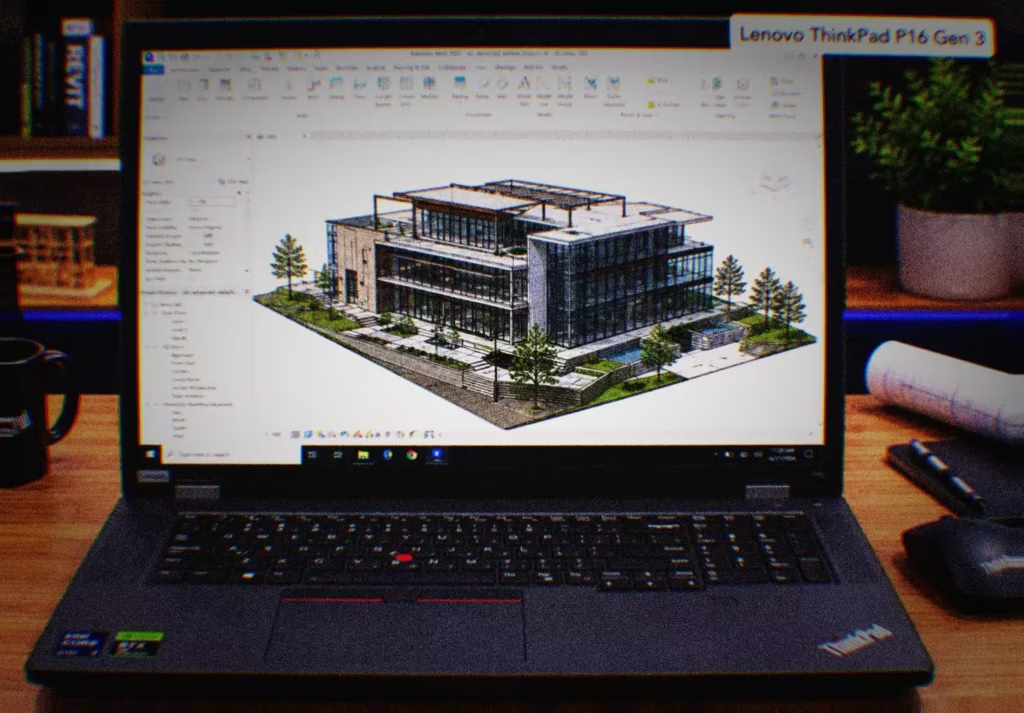
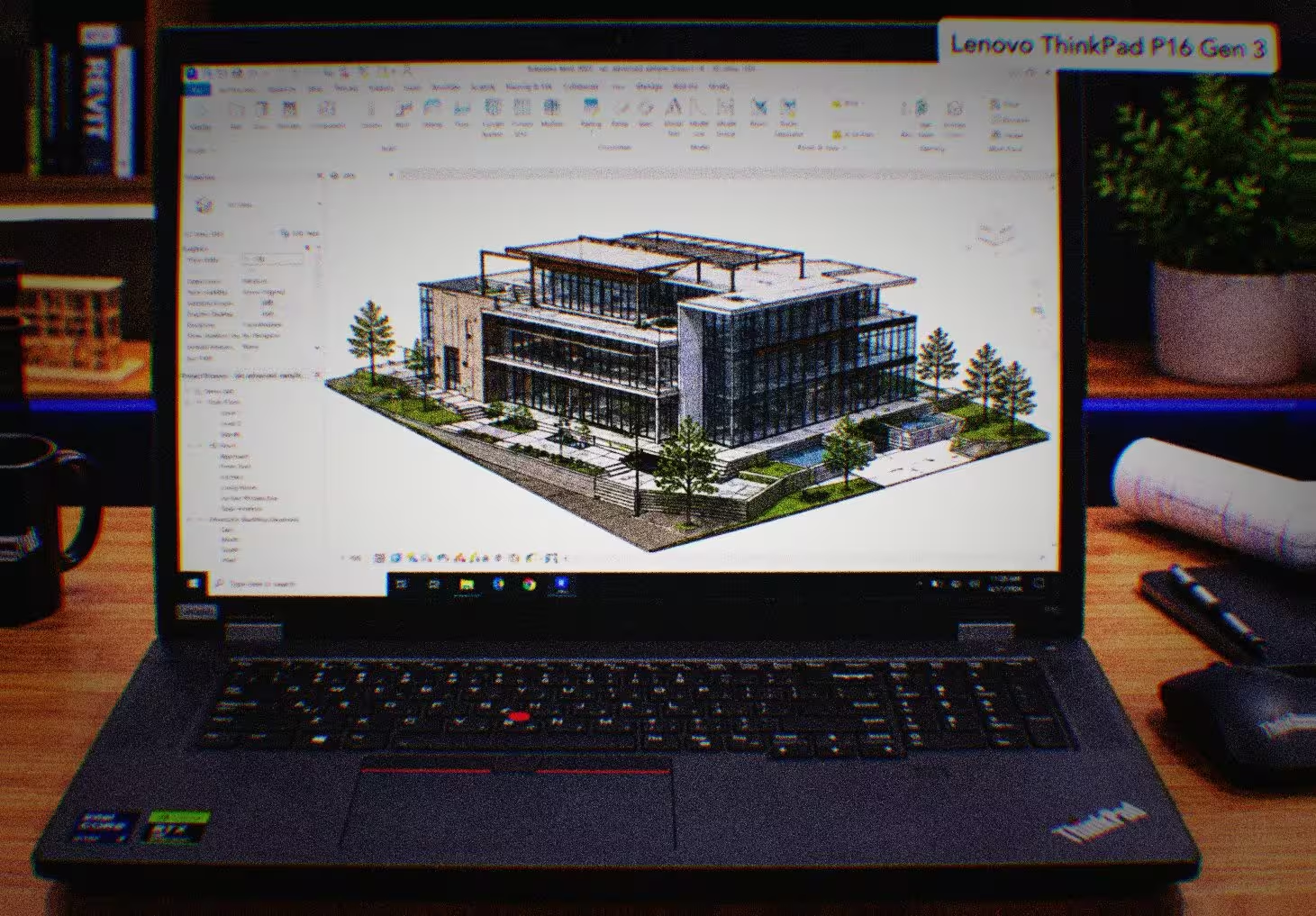
- Lenovo ThinkPad P16 Gen 3 — Best for Advanced and Professional Workflows
The ThinkPad P16 Gen 3 is kinda the outlier here — it’s a mobile workstation, not some gaming laptop that got repurposed for creative work, like others.
SketchUp and AutoCAD 2D, rather than heavy Revit or real time rendering.
Avoid if: you’re going to run Revit from day one , in a serious way, or if you need to output Enscape / Twinmotion renders on a regular basis. For students who already know they’re heading toward a BIM-intensive or large-scale professional practice, it’s worth knowing about.
The NVIDIA RTX 2000 Ada is an ISV-certified professional GPU, which matters for a specific set of AutoCAD and Revit users: those working with Autodesk’s certified hardware list, running AutoCAD Mechanical, or working in environments where driver stability is non-negotiable. For most students, consumer RTX cards (which all other laptops here use) are indistinguishable in practice. For some edge cases in technical modeling or simulation, ISV certification matters.
Our Revit model loaded in 31 seconds — fastest on the list. The Core Ultra 9 285HX’s high single-core clock speed is the reason. AutoCAD 3D orbit was the smoothest of any machine we tested: 9.5/10. Even the most demanding 3D views of our test drawing stayed fluid.
Enscape render time came in at 3 min 44 sec — the fastest of the group, though the gap between it and the ProArt P16 is smaller than the price difference suggests.
The ThinkPad’s keyboard remains among the best in any laptop category. For long documentation and drafting sessions, this matters. Honestly the build quality feels exceptional, like aluminum chassis level and this military-grade durability certification thing, plus the hinge it’s one of those that feels like it ll outlast the rest of the laptop itself.
Battery life is the expected weakness for a machine at this power level: about 4 hours under real architecture workload. Bring the charger.
Best for: Graduate students, interns at professional firms who need their laptop to also be their office workstation, or students whose department has specific ISV certification requirements.
Try not to pick this if budget matters, because the whole portability matters angle too, and also because if you are in some design oriented program the display quality gap between this IPS panel and an OLED screen is visible in your work.
Lenovo ThinkPad P16 Gen 3 Intel Core Ultra 7 255HX, 20C, 16″ WQUXGA (3840 x 2400) Non-Touch, 800 nits, 32GB RAM, 2TB SSD, NVIDIA RTX PRO 2000 Blackwell, Backlit KYB, Windows Pro:
Lenovo ThinkPad P16 Gen 3 Intel Core Ultra 7 255HX, 20C, 16″ WQUXGA (3840 x 2400) Non-Touch, 800 nits, 128GB RAM, 2TB SSD, NVIDIA RTX PRO 2000 Blackwell, Backlit KYB, Windows Pro:
Lenovo ThinkPad P16 Gen 3 Intel Core Ultra 7 255HX, 20C, 16″ WQUXGA (3840 x 2400) Non-Touch, 800 nits, 64GB RAM, 4TB SSD, NVIDIA RTX PRO 2000 Blackwell, Backlit KYB, Windows Pro:
Lenovo ThinkPad P16 Gen 3 Mobile Workstation Laptop (16″ 4K+ UHD+, NVIDIA RTX PRO 2000 Blackwell 8GB, Intel Core Ultra 7 255HX, 32GB DDR5, 1TB SSD) for Engineer, Designer, 2x Thunderbolt 5, Win 11 Pro:
Benchmark Summary
Revit 2026.1 — Model Load Time (95 MB, 2 linked files)
Laptop | Load Time | Notes |
| ThinkPad P16 Gen 3 | 31 sec | Fastest — highest single-core clock |
| ProArt P16 (RTX 5070) | 34 sec | Ryzen AI 9 HX chip advantage |
| Zephyrus G14 (2026) | 36 sec | Same chip as Legion, slightly warmer |
| Legion Slim 5 Gen 11 | 38 sec | Best value per second of load time |
| Acer Nitro V 15 AI | 52 sec | Older i7-13620H shows its age |
Enscape 4.1 — 40s Flythrough Render at High Quality, 1080p
Laptop | Render Time | GPU TGP |
| ThinkPad P16 Gen 3 | 3 min 44 sec | RTX 2000 Ada ~80W |
| ProArt P16 (RTX 5070) | 3 min 51 sec | RTX 5070 @80W |
| Zephyrus G14 (2026) | 4 min 08 sec | RTX 5060 @105W |
| Legion Slim 5 Gen 11 | 4 min 22 sec | RTX 5060 @80W |
| Acer Nitro V 15 AI | 6 min 17 sec | RTX 5050 @60W |
Display Quality
(DCI-P3 coverage, measured with Datacolor Spyder X Pro)
Laptop | Panel Type | DCI-P3 | Delta E | Brightness |
| ProArt P16 | Tandem OLED 4K | 99.1% | 0.9 | 700 nits sustained |
| Zephyrus G14 | QHD+ OLED | 98.7% | 1.2 | 500 nits |
| Legion Slim 5 | 1600p OLED | 98.4% | 1.8 | 450 nits |
| ThinkPad P16 | IPS | 84.2% | 2.4 | 500 nits |
| Nitro V 15 AI | FHD IPS | 63.1% | 3.7 | 295 nits |
Thermal Performance (End of Enscape Render)
| Laptop | CPU Temp | GPU Temp | Fan Noise |
| ProArt P16 | 82°C | 74°C | 38 dB |
| Legion Slim 5 | 84°C | 77°C | 44 dB |
| Zephyrus G14 | 91°C | 82°C | 47 dB |
| ThinkPad P16 | 88°C | 79°C | 46 dB |
| Nitro V 15 AI | 89°C | 83°C | 49 dB |
Weight and Battery Life
Laptop | Weight | Real-World Battery (Architecture Workload) |
| Zephyrus G14 | 1.5 kg | 6.5 hrs |
| ProArt P16 | 1.95 kg | 5.5 hrs |
| Nitro V 15 AI | 2.3 kg | 5.0 hrs |
| Legion Slim 5 | 2.35 kg | 4.8 hrs |
| ThinkPad P16 | 2.55 kg | 4.0 hrs |
Who Should Buy What
Tuan starting architecture school and he don’t know yet what my program requires, like honestly I’m still waiting on the syllabus to be properly clear. He has got my eye on the Lenovo Legion Slim 5 Gen 11 though because it feels like the best performance per dollar , and it’ll handle basically everything a first-year studio throws at you . The OLED display is also genuinely good, not just “marketing good” either, and if your workload ends up getting heavier in the later years like 2–4, you’ll have learned enough to choose a more informed upgrade instead of guessing now.
If your program is Revit-heavy from day one and you want to do real time rendering regularly, then I’d look at the ASUS ProArt P16 or the Zephyrus G14 , but it depends on what you care about most . ProArt is more for display quality + that more professional vibe , while the G14 leans hard into portability and carrying ease . Either way both should stay steady through a demanding four-year run.
If you need to carry your laptop everywhere and you hate heavy bags, go with the ASUS ROG Zephyrus G14. The 1.5 kg weight is a real daily quality of life improvement , like you actually notice it by day two. And when you’re at your desk, pair it with an external monitor , so you don’t feel cramped.
If you have a limited budget and in your first year it’s mostly SketchUp and AutoCAD, I’d say the Acer Nitro V 15 AI is a solid pick . For light to moderate workloads it’s honestly more than adequate. Just plan on upgrading before your final two years if your program intensity rises, because those later projects can get… bigger than you expect.
If you’re a graduate student or you’re working in a firm environment, and you need the most stable powerful machine, then the Lenovo ThinkPad P16 Gen 3 makes the most sense. It has ISV certification, an excellent keyboard , and it’s strong with fastest single core performance. The price is higher , but it’s worth the premium if you’re using it like a professional tool not just a student laptop.
What About MacBooks?
MacBook Pro M4 Max runs Rhino, SketchUp, and the Adobe suite beautifully. Battery life is exceptional. Display quality is among the best available.
But: Revit has no native macOS version as of 2026. You can run it through Parallels, and it works — but with meaningful performance overhead and occasional stability quirks. If your program is Revit-centric (which most accredited programs are), I’d only recommend a MacBook if your school has confirmed Parallels compatibility, you’ve used it yourself in the trial, and the performance gap doesn’t bother you.
For Rhino + SketchUp + Photoshop-focused programs (which exist, particularly in some design schools), a MacBook Pro M4 is genuinely competitive and may be the better machine.
Minimum Specs for Architecture School in 2026 — Quick Reference
If you’re shopping outside this list or buying used:
| Component | Minimum | Recommended |
| CPU | Intel Core i7 (13th gen) / Ryzen 7 7000s | Core Ultra 7 / Ryzen AI 9, 5.0+ GHz boost |
| GPU | NVIDIA RTX 4050 6 GB | RTX 5060 8 GB or better |
| RAM | 16 GB DDR5 | 32 GB DDR5 |
| Storage | 512 GB NVMe PCIe Gen 4 | 1 TB NVMe Gen 4 or Gen 5 |
| Display | 15-inch, FHD | 15-16 inch, QHD+ or 4K, OLED |
| Weight | Under 2.5 kg | Under 2.0 kg for commuters |
Frequently Asked Questions
Do I need a workstation GPU (Quadro / RTX A-series) for architecture school?
No, not for student-level work. ISV-certified professional GPUs help in specific professional scenarios — large coordinated models, precise simulation — but for architecture school, a consumer RTX GPU from the 5050 tier upward will handle everything you encounter. Save the workstation budget for after graduation.
Is 16 GB RAM enough for Revit?
Barely, for typical student projects. 16 GB works fine through most of your studio years. When you start working with multiple linked files (Structural, MEP, large site models), you’ll feel the constraint. If you can afford the 32 GB configuration at purchase time, it’s worth it — RAM is not upgradeable on most of these laptops.
Can I use an external monitor?
Absolutely, and for any laptop smaller than 15 inches, it’s essentially required for serious Revit work. All laptops on this list support external displays via HDMI or USB-C (DisplayPort Alt Mode). A 1440p or 4K external monitor costs $200–400 and dramatically improves the Revit experience.
Does the GPU matter for AutoCAD 2D?
Almost not at all. AutoCAD 2D is CPU-bound and runs fine on any GPU on this list. Where GPU matters is 3D viewports, visual styles, and any real-time rendering plugin.
How long should a laptop last through architecture school?
A machine that matches our Recommended specs up top should manage a full four-year program without turning into a steady bottleneck. Revit’s hardware expectations have climbed slowly over time, still the core setup remains pretty much the same, like single core CPU dedicated GPU and a fast SSD, it hasn’t really shifted all that much in recent years. I’d budget for the 32 GB RAM and the 1 TB SSD right when you buy it, not sort of trusting you can add or replace later, because that plan tends to get messy.
BiaReview got to borrow the Legion Slim 5 Gen 11, and also the Acer Nitro V 15 AI . The ProArt P16, Zephyrus G14, and the ThinkPad P16 Gen 3 were just loaner machines from the local shop in Hanoi, if we’re being precise . Every test ran independently, no cross influence or anything like that. Also, no manufacturer had a peek at the draft or steered this article before it went live.
For the prices , we’re talking about approximate USD as of May 2026, and they can change depending on the retailer. Do double check the current pricing before you actually buy anything, since it shifts a lot.





Tech Reviewer & Product Analyst
Định Bia has spent over 10 years testing consumer electronics with a focus on smart technology. He work as a product advisor at Biareview where he helped customers find the right devices for their needs. He personally tests every product featured on this site using a consistent evaluation framework covering quality, durability, and value. All reviews are based on experience, not influenced by the manufacturer.