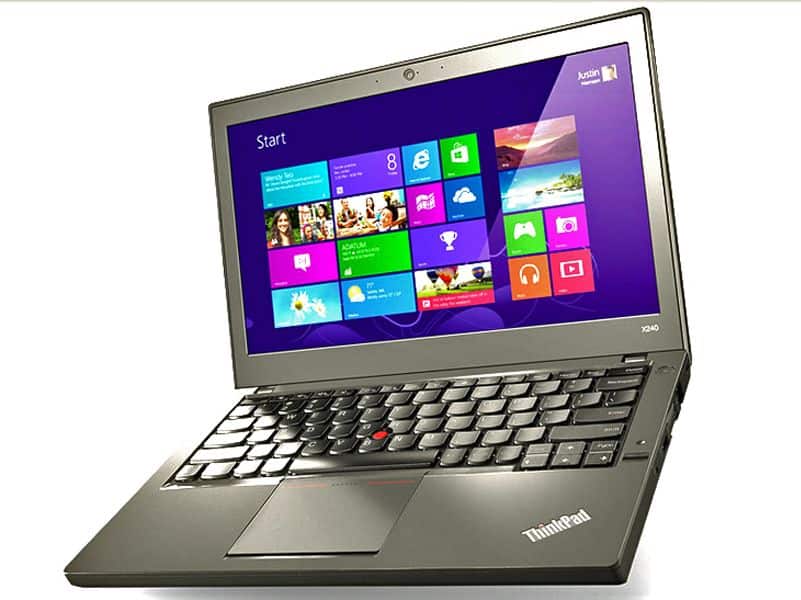
With its durable design, powerful performance and good battery life, the Lenovo ThinkPad X240 is not a bad choice for the business.
As a new ThinkPad X model (released with the ThinkPad T440s and T440s), the X240 retains its traditional, yet improved, lighter weight (1.34kg weight) design. The machine is covered with a new coat of gray in color instead of black as before.
Unlike other ultrabooks that use metal casing, the X240 remains loyal to carbon fiber and magnesium. It is 30.48 x 20.8 x 2 cm, thinner than its predecessors, but still fully equipped with SD card reader, LAN Ethernet port, VGA out, HDMI, 2 USB ports 3.0.
The keyboard and touchpad are also scrubbed. The X240 still owns a black-backed chiclet keyboard, which is slightly dented, bouncy, and with plenty of room for text or text input. The X240’s larger, 4.5-inch touchpad combines trackpoint and touch screen, creating a range of user-friendly operation tools.
The most notable feature of the ThinkPad X240 is the ownership of two independent batteries. A 3-cell battery built into the machine and a removable 3 cell battery (users can replace the battery without shutting down). Combined with the technology of extending the Power Bridge battery life, Lenovo claims the X240 has a battery life of up to 17 hours.
Other specifications of the Lenovo X240 include 12.5-inch full HD IPS-based screen resolution of up to 328 nits. Inside, the ThinkPad X240 is equipped with Haswell Core i5 chip, 4GB RAM, 500GB HDD.
Display
Visual Quality
The Lenovo ThinkPad X240 comes with a 12.5 inch screen, the resolution is 1366 x 768 pixels. That HD setup is pretty common for laptops in this tier, you know, it gives you decent crispness for daily work and what not. On top of that, the panel is IPS, or In-Plane Switching, it brings better color accuracy, and wider viewing angles than older TN , Twisted Nematic style displays.
In day to day use the screen does fine, so for web browsing, document writing, even video streaming it feels adequate. With IPS, the colors tend to stay vibrant and fairly steady even if you look from different sides. Sure the resolution isn’t as sharp as what some newer machines manage, but honestly it still works for most business needs and normal multimedia playback.
Brightness and Color Accuracy
For brightness, the ThinkPad X240 screen is rated roughly 300 nits on the top end, so most of the time it’s pretty fine for inside setups. Still, if you’re in a space with harsh light, or you end up outdoors in direct sun, it can feel a bit tricky, and the whole view might feel less comfortable than you’d want. You can still see what’s on the display, it’s not that everything just vanishes , or gets swallowed up.
Color accuracy is generally solid too, the panel covers the usual sRGB color gamut. This should be okay for everyday use, the kind of color reproduction you need when you’re handling office tasks. But if you’re doing more color sensitive work, like graphic design, or photo editing that demands precise results, then it might fall short.
Performance
Processor and Graphics
The Lenovo ThinkPad X240 runs on Intel’s 4th generation Core chips, and you can pick between Core i3 up to Core i7. In practice this setup lands in that “right in the middle” zone, good for both performance and power savings, so it handles a lot of computing chores without feeling sluggish. That said, the Core i5 and especially the Core i7 models feel noticeably better when you are juggling many things at once, or using heavier applications that like extra headroom.
For graphics the X240 relies on integrated Intel HD Graphics 4400. This kind of onboard solution is usually enough for everyday work and light multimedia. It should manage casual gaming and smooth video playback, though it’s still basically not built for intense graphics workloads, or anything professional that wants stronger GPU horsepower. so if you expect high-end rendering or demanding game settings, the limits show up fast.
Memory and Storage
Most ThinkPad X240 units ship with 4GB or 8GB of DDR3L RAM, depending on how it was put together. If it’s 4GB, you can still handle basic multitasking and normal everyday duties, but you may see some slowdown once you keep opening a bunch of browser tabs and also when background apps start running. The 8GB version feels more comfortable, it makes switching between programs feel quicker and less constrained.
As for storage, you’ll usually find either a classic HDD (Hard Disk Drive) or an SSD (Solid State Drive). The HDD capacities commonly sit around 500GB to 1TB, so you end up with plenty of space for documents, media, and installed software, but , compared to SSDs it kind of feels slower during loading screens, and general responsiveness. SSD options are often in the 128GB to 256GB range, and they tend to deliver quicker boot ups, faster application launching, and overall a more seamless day to day experience, even if the storage size is smaller.
Real World Performance
So in real life, the Lenovo ThinkPad X240 actually holds up pretty well across a mix of computing duties. Pairing Intel Core processors with integrated graphics makes it decent for day to day stuff like checking the web, editing or working on documents, and also streaming media. If you choose the SSD option, you usually notice a real difference, meaning quicker startup, faster app loading, and just overall smoother use than you’d get with an HDD , which is kind of the point here.
Now, for people that want something a bit more punchy, like juggling several applications at the same time, or dealing with bigger files , the Core i5 or Core i7 configurations with 8GB RAM plus an SSD tend to feel more comfortable. The X240 can manage these jobs fairly efficiently though, still , if you’re pushing it with heavier workloads on a regular basis, it makes sense to look at higher tier models, or even a workstation style setup.
Battery Life
Longevity and Charging
The Lenovo ThinkPad X240 usually ships with a 3-cell or a 6-cell lithium ion battery , depending on the exact configuration you got, and yes it can feel kind of random sometimes. Most folks notice that the 3-cell version lands about 6 to 7 hours of runtime with casual to moderate use, while the 6-cell pack feels more like 9 to 12 hours. Still, in real life the numbers can swing a lot, because screen brightness matters a ton, what you’re doing right then and there, and how tight or relaxed your power management choices are.
In practice, that battery life is enough to get through a full day of studying or typical work, so it feels dependable when you’re away from a plug for longer stretches. As for charging , the laptop supports normal charging speeds and there isn’t any rapid charging technology built in.
Keyboard and Touchpad
Keyboard Layout and Comfort
The Lenovo ThinkPad X240 comes with the well liked ThinkPad keyboard, with that tactile feel you notice right away and a pretty comfortable typing routine. The keyboard keeps a traditional layout, keys are spaced out nicely and there’s a solid amount of key travel too. It also has backlight, so typing in dim rooms is a lot easier, even when the lights are sort of low.
Overall the design seems tuned for both durability and comfort, with a spill resistant build that helps with small accidental messes. In day to day use the typing experience is, honestly, excellent and the whole thing feels responsive and dependable, which makes it suitable for long sessions without feeling fatigued.
Touchpad
As for the touchpad, on the ThinkPad X240 it’s large and it delivers smooth, accurate cursor handling. It does multi touch gestures as well like scrolling, zooming, and three finger swipes, and those are handy for moving around the operating system or apps faster. The surface feels responsive and nice in hand, but it might not include every fancy option you’d see on higher end models.
There are dedicated left and right buttons too, and they give clear tactile feedback when you click. The buttons are placed well, and the clicking feels comfortable, not stiff and not overly soft either.
Connectivity
Ports and Slots
The Lenovo ThinkPad X240 comes with a fairly wide set of ports, and honestly the mix of them makes it easy to hook up stuff, peripherals, or whatever you end up needing. In general, you’ll find a set of ports like:
2 x USB 3.0 Type-A , for attaching external devices and getting quicker transfer speeds.
1 x USB 2.0 Type-A , mainly for older gear and accessories.
1 x Mini DisplayPort for video output to external screens or projectors.
1 x VGA , yes still included, for older monitors or projectors that stick with VGA connections.
1 x Ethernet (RJ-45) for a wired network link.
1 x Smart Card reader, for better security and authentication.
1 x Audio combo jack (headphone/microphone) , for headphones, or for external mics too.
1 x Power input, for the charger obviously.
Having all of these options means most people won’t run into “where do I plug this in” type problems. In particular, the Mini DisplayPort plus VGA combination gives extra leeway for external displays, while the Ethernet port makes the network connection feel steadier, and less picky.
Wireless Connectivity
Audio Quality
Speaker Performance
The Lenovo ThinkPad X240 has built-in stereo speakers sitting on the laptop underside ,so you won’t exactly get booming sound from the top. In general the audio quality is fine for everyday things like watching videos, or listening to music. At moderate volume the sound comes out pretty clear, yet there s often that missing punch in the lower range, plus the bass feels a bit thin. It s adequate, but not exactly lush or immersive.
If you want something more engaging, you can hook up external speakers ,or headphones through the audio combo jack. Overall the audio output works for normal use, though people who care a lot about richer sound may feel it comes up short
Microphone
The built in microphone on the X240 is mainly meant for simple voice tasks ,like video calls or quick voice recordings. For typical use it does its job, but it won’t match the sharper clarity and stronger noise control you see on newer higher-end models. If you really need cleaner input, using an external microphone will probably be the safer play for better results.
Lenovo 20AL009CUS ThinkPad X240 13-Inch IPS Technology HD LED Ultrabook (Intel Core i7-4600U, 8GB RAM, 256 GB SSD, Windows 7 Professional 64): Buy it now
Lenovo ThinkPad X240 20AM001UUS 12.5-Inch Laptop (1.9 GHz Intel Core i5-4288U Processor, 4GB DDR3L, 128GB SSD, Windows 8 Professional) Black: Buy it now
Lenovo Thinkpad X240 Ultra-Portable Business Notebook Black (20AMS29H3) – Intel Dual Core i5-4300U 1.90GHz Base CPU with 2.90GHz Max Turbo 3MB/L3, 4GB DDR3-1600, 256GB Solid State drive SSD, 12.5″ HD WXGA LED Backlight 1366×768 Display, 720P HD Webcam, Intel Wireless-N 7260 2×2 802.11B/G/N and Bluetooth 4.0 combo, Intel HD 4400 Graphics, Mini-Display Port with Audio, 4 in 1 Media Reader, VGA Port, 2-USB3.0 Port,10/100/1000 Ethernet, Integrated 3-Cell Battery plus External 3-Cell Lithium Ion battery, No Optical Drive, Windows 8.1 Professional 64bit: Buy it now
Lenovo ThinkPad X240 12.5″ LED Ultrabook Intel Core i5-4300U 1.9GHz Black 20AM0054US: Buy it now
Software and Support
Pre-installed software (kind of)
The Lenovo ThinkPad X240 arrives with a selection of pre-installed software that is meant to boost day to day use and add extra value, yes. Usually you’ll see some mix of the following, and it might vary a bit by configuration or region:
Lenovo Vantage: This utility lets you reach system updates, hardware diagnostics, and some other tools too, which helps optimize the laptop’s performance. In practice, Lenovo Vantage gives a pretty friendly interface for managing system settings, and it also helps keep everything current.
Lenovo Solution Center: This one is for support style troubleshooting and diagnosing hardware trouble. It gives an overview of system health , and it lets users run diagnostic tests to find and sort out the issue.
Microsoft Office Trial: Depending on what you got, the X240 may include a trial version of Microsoft Office. You basically get short term access to the usual work tools like Word, Excel, and PowerPoint. But it’s kind of a temporary thing, not permanent.
Windows Operating System: usually it arrives with Windows 7 or Windows 8, depending on the time it was purchased, and yes that matters. If you are looking for newer capabilities, plus more current protection patches, Windows 10 can often be upgraded for free.
Support and Warranty
Lenovo provides a pretty standard one year warranty on the ThinkPad X240, it covers hardware defects, and things that pop up during normal usage. As part of that deal, you get access to Lenovo’s support network too, so online troubleshooting guides, community forums, and customer service are all in the mix. Nothing too fancy, but it is there when you need it.
If someone needs longer protection, or just wants extra help, Lenovo also sells optional extended warranty plans and premium support services. Those extras usually mean a longer coverage timeline , plus more avenues for assistance such as on-site repairs and more advanced troubleshooting, instead of only the basic remote guidance.
User Experience and Feedback
Performance and Reliability
The Lenovo ThinkPad X240 is in general seen as reliable and pretty capable, a bunch of users seem to like the sturdier build quality and that keyboard which feels comfortable even for longer sessions, plus the performance stays steady enough for daily tasks. Also, the portability plus the battery life makes it a common pick for business users who work in motion, and want a dependable machine.
What comes up a lot in user feedback is durability and also straightforward usability. People mention how the laptop can handle rougher treatment and still keep going, and how the performance stays fairly consistent over time. That said, some users complain that the screen resolution is kinda modest compared to newer laptops. Others also feel the integrated graphics can be limiting if you’re looking for more demanding graphical performance, or advanced visuals for certain workloads.
Common Issues
The ThinkPad X240 is usually steady enough, but a few people have mentioned “typical” problems, like they pop up more than you’d expect. For example, there might be heat and a bit of noise: when you push it hard, the cooling system can get pretty warm and the fan can sound noticeable. It’s not weird for a laptop, but still, it matters if you want a calm quieter workspace, and a cooler device overall.
Another one is battery degradation, over time the battery capacity can drop, so the run time becomes shorter. It’s a known pattern for laptops as they age ,and sometimes a battery swap is the only way to bring things back to where you want them.
Then there is display brightness. The screen top brightness can seem a bit too low for very bright rooms, or if you’re working outdoors with direct sun. So if you work outside fairly often, or you’re in spots with strong lighting, you might notice the display is little hard to use, more often than you expect.
Comparison with Competitors
Lenovo ThinkPad X240 vs. ThinkPad X250
The Lenovo ThinkPad X250 is basically the next step after the X240, and it brings a few updates that people tend to notice. The main contrasts are pretty simple though, like:
Processor: The X250 uses newer Intel Core processors, so you usually get a little better performance and improved power efficiency, compared with the X240.
Battery: The X250 comes with upgraded battery options, including batteries with more capacity ,so you can often expect longer battery duration than the X240.
Display: The X250 also supports a higher-resolution display option. This means more detail, and sharper text, versus the X240’s 1366 x 768 setup.
Lenovo ThinkPad X240 vs. Dell Latitude E7240
Dell Latitude E7240 kind of sits in the same lane as the ThinkPad X240, you know ultraportable business laptops, similar vibe, similar audience. Both aim for that practical everyday work feel but with little differences here and there. Generally the big stuff comes down to build, screen and the way you can get different internal options depending on the model.
Build Quality: both machines are pretty solid, but the ThinkPad X240 is kinda famous for rugged durability and that spill resistant keyboard, it feels like it was made for real life. Meanwhile the Latitude E7240 also has sturdy construction with a more polished premium appearance, less “tank-ish” and more refined.
Performance: on paper they can be close, but the Latitude E7240 may come with different processor choices, plus various configurations. So depending on what exact unit you pick, the performance profile can change more than you’d expect.
Lenovo ThinkPad X240 vs. HP EliteBook 840 G1
The HP EliteBook 840 G1 is also a competitor, basically in that same business ultraportable territory where people want reliability and portable hardware that still feels serious.
Design: the EliteBook 840 G1 leans into a sleek, modern look with an aluminum body, it feels smooth, more “office ready.” The ThinkPad X240 goes with a more classic design language, and it’s clearly tuned for durability first.
Keyboard: both have nice keyboards but, honestly, the ThinkPad X240’s keyboard gets the extra praise. The tactile feedback is usually described as top tier, and the typing comfort is something people notice quickly. The EliteBook keyboard is still good, just not as celebrated.
Ports and Connectivity: the EliteBook 840 G1 can have different port layouts compared to the ThinkPad X240. You might see variants with USB 3.0, plus different docking support options. The X240 is steady here too, but depending on configuration, the exact “what goes where” experience can vary.
Conclusion
Lenovo ThinkPad X240 is kind of a well rounded ultraportable laptop, it really shines in the whole design , the build quality and the day to day performance you would expect for that era. The chassis feels durable, the keyboard is actually quite comfortable to use, and the display is decent enough for most business style work. So for business professionals, or really anyone who needs something portable yet dependable, the X240 gives you a solid computing experience.
The X240 doesn’t have some of the newer fancy extras or those very high resolutions you see on more recent models. But it still feels like a reliable pick, especially for folks who prefer durability over novelty, plus portability and that satisfying typing feel. Between its steady performance and long battery life, it works well for everyday tasks as well as typical business applications.
To wrap it up, the Lenovo ThinkPad X240 is a commendable choice, if you want something capable ,and well built for a ultraportable. It still keeps a good balance of quickness, durability and portability, so even as technology keeps moving forward it makes sense for many users.
Related Posts


Tech Reviewer & Product Analyst
Định Bia has spent over 10 years testing consumer electronics with a focus on smart technology. He work as a product advisor at Biareview where he helped customers find the right devices for their needs. He personally tests every product featured on this site using a consistent evaluation framework covering quality, durability, and value. All reviews are based on experience, not influenced by the manufacturer.