Table of Contents
Acer Aspire S7
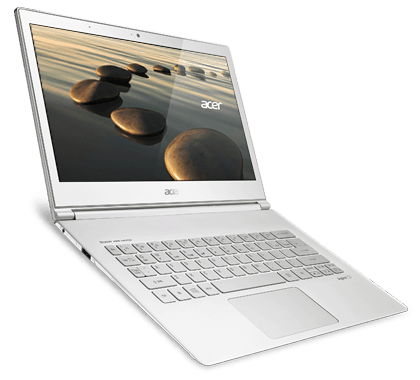
Acer Aspire S7-392-9439 13.3-inch WQHD Touchscreen Ultrabook, i7-4500U Processor, 8GB RAM, 256SSD Drive (Crystal White): Buy it now
Introduction
Acer put the Aspire S7 out in 2012, its first real attempt at cracking the premium ultrabook market — going head-to-head with the MacBook Air and Dell XPS 13 on thinness, screen quality, and build. The line saw a few updates over the years, but what stayed constant was the pitch: light, well-built, plenty capable for its size. Here’s a full rundown — design, display, performance, software, connectivity, battery, and how it actually feels to use day to day.
Design and build quality
Acer went minimal here: aluminum chassis, and — unusually — a Gorilla Glass lid instead of the metal or plastic most ultrabooks use. It’s a small choice that ends up mattering; the S7 looks distinct next to nearly anything else from this era.
It’s small too — 12.72 x 8.78 x 0.51 inches, 2.87 pounds. Genuinely easy to carry around all day, which is really the whole point of an ultrabook.
The build backs up the look. Despite how thin it is, the aluminum chassis doesn’t flex or creak, and the hinge folds the display back a full 180 degrees without any wobble along the way. The Gorilla Glass lid isn’t just cosmetic — it actually holds up against scratches and the small bumps a laptop takes just from being used daily.
Display
13.3-inch IPS touchscreen, 1920×1080 on most units (some shipped with 2560×1440 instead). Sharp, accurate colors, good contrast, and the kind of wide viewing angles that make it easy to show someone else what’s on your screen without the colors washing out.
The touch response is quick and handles multi-touch gestures well — genuinely made navigating Windows more pleasant, especially for browsing or anything designed with touch in mind.
Brightness and Outdoor Visibility
The display of the Aspire S7 is bright enough for comfortable indoor use and can fairly hold its ground in outdoor conditions. It somewhat glared with exhibitions of reflections due to the direct sunlight, whereas it still remained readable when it was shaded in an outdoor setting. High brightness levels are beneficial when the spaces within the house are filled with a lot of light.
Performance
Processor and RAM
Depending on the configuration, the Aspire S7 runs an Intel Core i5 or i7, from either the Ivy Bridge or Haswell generation both solid choices for balancing performance against battery life. RAM is sold in 4GB or 8GB. For most everyday tasks, 4GB works. Still, if you usually leave many tabs and apps running, 8GB is the safer pick.
Storage
Storage is SSD-based, in either 128GB or 256GB. That means fast boot times and quick app launches either way. But neither capacity is generous — if you work with large files or keep a big media library, you’ll want an external drive or cloud storage to supplement it, especially on the 128GB configuration.
Real-World Performance
Day to day, the Aspire S7 holds up well. Web browsing, email, document work, streaming video — none of it gives the processor, RAM, or SSD any trouble, and the whole experience stays responsive rather than lagging under normal use. It’ll even handle photo editing and light video editing without choking, though it’s not going to replace a dedicated workstation for anything heavier.
Software
Operating system
It came with Windows 8 and could be upgraded to Windows 10. Windows has what you expect, like a known layout and access to lots of apps from the Microsoft Store and other places. The 10-point multi-touch screen works well with touch features in both Windows 8 and Windows 10. As a result, pinch-to-zoom and swipe moves feel normal, not forced.
Pre-Installed Software
Some software is pre-installed by Acer, and some are useful, and others are considered bloatware. Useful applications that come pre-installed include Acer’s power management and backup utilities, as well as applications for accessing Acer’s cloud services. However, users may want to uninstall the less useful ones in order to free up disk space and speed up the system.
Connectivity
Wi-Fi and Bluetooth
This laptop has dual band wireless. It supports Wi‑Fi 802.11ac and also Bluetooth 4.0. In normal use, things usually load fast and stay stable. The Wi‑Fi signal does not drop often. The coverage is good enough for most rooms. For home work and office tasks, it is more than sufficient. Bluetooth helps you add extra gear. You can set up devices like a wireless mouse, a keyboard, or a headset.
Ports and Expandability
The Aspire S7 does manage to provide a decent port selection for such a thin machine. It comes with two USB 3.0 ports, a micro HDMI port, an SD card reader, and a combo headphone/microphone jack. Some users might consider this a loss for the absence of a full-sized HDMI and for the limited number of USB ports. Still, most users should find what they require in terms of ports. The SD card reader is icing on the cake since it offers an easy path to the expansion of storage space or to the transfer of files from cameras and other devices.
Battery Life
Longevity
The laptop comes with a 4-cell Li-polymer battery which offers up to 7 hours of battery endurance per charge. Somewhat anecdotal cases portray the battery life varying with the intensity of the task. Light tasks like web browsing and document editing see battery life going closer to the stipulated 7 hours. Video streaming or photo editing can quickly cut that in half.
Charging Time
Using the power adapter supplied with the Aspire S7, an empty battery takes two to three hours to fully recharge. Thanks to the very fast charging, the user can spend just a little time within which to power the ultrabook and get back to work or play.
Keyboard and Touchpad
Keyboard
The Aspire S7 uses a chiclet keyboard with decent key spacing and a white backlight. The keys have enough travel and tactile feedback that typing feels solid rather than mushy — not mechanical-keyboard good, but well above the flat, no-feedback keys you get on a lot of ultrabooks this thin. The backlight brightness is adjustable too, which comes in handy typing in a dim room or on a plane at night. The only slight nitpick: key travel feels a little shallow and takes some getting used to if one has been using any keyboard with deeper key travel.
Touchpad
The touchpad on the Aspire S7 is rather large and does a great job with multi-touch gestures. It is smooth and responsive, providing great cursor control and an awesome user experience. The buttons integrated into the touchpad are well-designed, offer easy actuation, and provide a convincing sound upon clicking.
Camera and Multimedia
Webcam
The Aspire S7 is equipped with a 1.3-megapixel HD webcam perfect for video calling and conferencing. The webcam lends fine clear sharp images when the environment is bright well-lit, with the downside that it may not perform so well when less-illumination exists. The built-in dual-array microphones record crystal-clear audio and guarantee easy communication during video calls between the parties.
Audio Quality
The built-in stereo speakers produce loud, clear sounds ideal for viewing videos, playing music, and video calling. They provide good audio for their size, though certainly lacking any sort of depth or bass response that dedicated external speakers would come with. For a better audio experience, there is always the option to hook up external speakers or headphones via the 3.5mm jack or Bluetooth.
Pros and Cons
Pros
Pros
Design: Slim, light, and built from aluminum with a Gorilla Glass lid — stands out from the metal-and-plastic crowd
Display: Full HD IPS touchscreen, sharp and color-accurate with wide viewing angles
Performance: Intel Core i5/i7, solid RAM, fast SSD — handles everyday tasks without hanging or lagging
Battery: 4-cell battery gets around 7 hours on a charge, with fast charging when you need to top up quickly
Keyboard and trackpad: Chiclet keyboard feels good to type on, trackpad tracks accurately and doesn’t feel cheap
Cons
RAM: With 4GB or 8GB, things can feel cramped fast if you keep many apps open or use heavy programs.
Storage: 128GB or 256GB may run out quickly if you deal with big files often.
Ports: It does not include a full size HDMI, and the USB options are few, so you may need an adapter or a small hub.
Final Remarks
A slick ultrabook with stellar looks, performance, and utility. Constructed with the highest quality materials, the aluminum chassis combined with the Gorilla Glass top lid lends extraordinary aesthetics to the ultrabook and distinguishes it amidst so much competition. The Aspire S7 makes a promise of a pleasant user experience, whether for work, study, or play, and delivers right on it.
There are a few limiting factors to check for, which include RAM and storage, but nevertheless, the Aspire S7 is an ultrabook that promises to deliver for anybody wanting something light, portable, and fast. Long battery life and fast charging, coupled with a fantastic display, make it the choice for anyone who likes traveling while seriously carrying a load for work or pleasure.
Overall, the Acer Aspire S7 remains a popular design performance usability solution for the majority of users today.
Asus Zenbook Prime UX31A
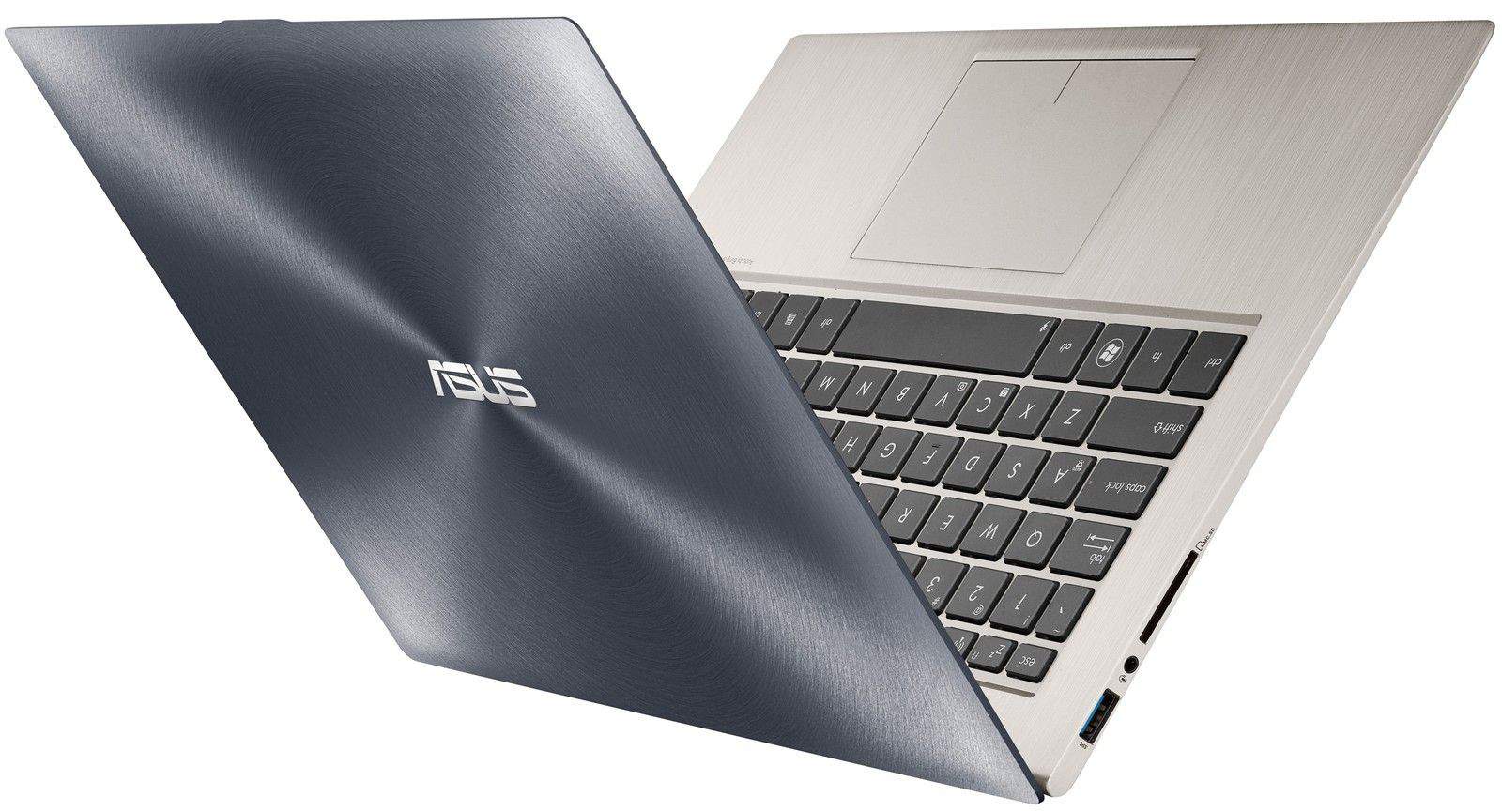
Asus Zenbook UX31A-DH71 Ultrabook- 13.3″ Full HD Display, Intel Dual-Core Processor i7-3517u 1.9GHz, 4GB Memory, 256G SSD, Windows 8: Buy it now
Design and build quality
The UX31A is built from a single block of aluminum, and it shows — the chassis feels solid and premium, not flimsy in the slightest, despite how thin it is. The brushed metal finish helps hide fingerprints too, so it doesn’t look grubby after a day of handling.
Worth double-checking the exact thickness spec before this goes live — the number here looks off. But broadly, it’s thin and light enough (around 2.86 pounds) that carrying it in a bag every day for a commute or travel isn’t a burden.
Display Quality
Display
The 13.3-inch IPS panel runs at 1920×1080 — sharp, accurate colors, and viewing angles wide enough that the picture holds up whether you’re looking straight-on or from the side. Good for editing photos, watching video, or just working through the day without eye strain.
Performance
What you get inside is Intel’s Ivy Bridge generation. You can choose a Core i5 or a Core i7. It usually ships with up to 8GB of RAM. Storage is an SSD, often around 128GB to 256GB. This lets the machine keep up with more than one job at a time. It handles regular office tasks well too. Some lighter games also run fine, as long as you do not expect heavy settings.
A lot of the smooth feel comes from the SSD. Boot time is faster. Apps open sooner. When you are just sitting and waiting, the system does not slow down.
Keyboard and touchpad
The keyboard has backlighting. The key spacing feels fair, not tight. After typing for a while, your hands do not feel cramped. The backlight can help when the room is dim.
The touchpad has a glass top. It supports multi touch. Your gestures are read correctly. The cursor moves in a predictable way. Using Windows feels steady, and you do not have to fix the pointer every moment.
Connectivity and Ports
True to its thin stature, the Zenbook Prime UX31A still has a decent number of ports for connectivity. It has two USB 3.0 ports for swift data transfers, a micro HDMI port to hook up to external displays, a mini VGA port as another display option, and a headphone/mic combo jack. There is also an SD card reader for easy access to external storage and fast file transfers.
Battery Life
Battery life matters a lot for an ultrabook. The Zenbook Prime UX31A does well in day to day use. It has a 50Wh lithium polymer battery. In normal use, you can expect around 6 to 7 hours per charge. This foragers to holding a long session of work or study without having to plug it into a source of electricity, hence further augmenting the status of this portable solution.”
Audio and Multimedia
Zenbook Prime UX31A features the SonicMaster Audio Technology from ASUS, which improves the quality of audio via fine tuning of the software and hardware componentry. There are two speakers inside, stereo by nature, producing a clear, balanced sound that will do for listening to music, watching videos, or something less worthy like a video call. The audio quality is decent enough for an ultrabook of its size, and those wishing for a deeper experience can plug in external speakers or headphones in via the headphone jack.
Software and Operating System
The Zenbook Prime UX31A usually comes with Windows 8 preloaded. After that, many people update it to Windows 10. With Windows, you get a straightforward and easy layout. It also lets you install apps from the Microsoft Store, plus apps from other sites as well. ASUS adds its own utilities and programs intended for user enhancements, such as for power management and system optimization.
User Experience
On a day-to-day basis, the Asus Zenbook Prime UX31A makes a huge basis of smooth and enjoyable user experience. Its combination of raw power, sharp display, and featherweight specification sales to professionals, students, and casual users. Whether productivity, multimedia, or creative production, this skinny of an ultrabook ensures the unhinged consumer remains productive and entertained on the go.
Pros and Cons
Pros:
Design: Aluminum build, thin and light — feels premium in hand
Display: 13.3-inch Full HD IPS panel, vibrant colors and strong viewing angles
Performance: Intel Ivy Bridge processors, up to 8GB RAM, SSD storage — stays responsive under normal use
Battery: Six to seven hours, enough to get through a workday without hunting for an outlet
Keyboard and trackpad: Backlit keys feel good to type on, trackpad tracks precisely
Cons:
Ports: Limited selection, no full-size HDMI — you’ll probably need an adapter
Audio: Built-in speakers are fine, but don’t expect real depth or volume
Fan noise: Gets loud under heavy load, a common trade-off in thin-and-light laptops
Conclusion
The Asus Zenbook Prime UX31A continues to maintain its appeal. It remains a choice laptop for users wanting something stylish and powerful, yet thin and ultra-portable. It truly is the one laptop with the high-end design, high-resolution display, across-the-board great performing hardware, and long battery life that can satisfy anything from serious professional work, multimedia entertainment, and general computing needs. Apart from a few minor set-of-niggles, such as the port selection and so-so audio, this is indeed the sort of laptop one could count on and jump into all manner of productive and creative work with; the Zenbook Prime UX31A continues to sweep through what is a pretty tough ultrabook marketplace.
Dell XPS 13

Dell XPS9360-4841SLV 13.3″ Laptop (7th Generation Intel Core i7, 8GB RAM, 256 GB SSD, Silver): Buy it now
The XPS 13 has been Dell’s flagship ultrabook for years now, and it’s earned that spot — the build quality, the display, the performance all hold up against pretty much anything else in the category. It’s popular across a wide range of users for a simple reason: it doesn’t really have an obvious weak point, whether you’re a student, a working professional, or just someone who cares about their laptop. This review will lead the reader to the many nuances that make the Dell XPS 13 stand out from a crowd of ultrabooks.
Design and Build
The XPS 13’s design is understated — aluminum and carbon fiber combined to keep it light without feeling flimsy. The aluminum shell does real work too, not just looks: it protects the internals while keeping the whole thing thin enough to disappear into a bag. The carbon fiber composite palm rest is an eye candy that also offers comfort during long stretches of use as it remains cool to the palm.
Measuring a mere 0.58 inches at its thickest and weighing only 2.7 pounds, the XPS 13 is a compact ultrabook that fits in a backpack or briefcase with ease. The thin bezels around the display greatly assist in the compact footprint, maximizing usable screen size without unnecessarily increasing the overall footprint of the laptop.
Display Quality
The Dell XPS 13 is well known for offering stellar display options: a Full HD (1920 x 1080) non-touch panel and an Ultra HD (3840 x 2160) touchscreen panel. Both selections provide InfinityEdge technology to maximize viewable area through a practically absent bezel. The Full HD display offers sharp details and lively colors, too much for everyday productivity and multimedia consumption.
The Ultra HD touchscreen carries higher resolution and wider color gamut that enhance sharp visuals and color accuracy and thus suit photo and video editing tasks. The IPS technology allows wider viewing angles so that several people can enjoy viewing something on the screen.
Performance
Elite Intel-the-latest CPUs power the computer from the inside, offering Core i5 and Core i7 varieties. These are combined with up to 16GB of LPDDR4x RAM and blisteringly fast PCIe SSD storage from 256GB to 2TB. So, snappy performance is ensured, and multitasking smoothly through photo editing or these heavy applications is done without stagger or dragging.
Integrated Intel Iris Xe graphics continue to offer adequate support for casual gaming and multimedia editing purposes; however, cause serious gamers and graphic design professionals may want to go with some separate graphics cards for a knockout experience.
Keyboard and Touchpad
The Dell XPS 13 has a backlit keyboard with widely spaced keys that offer a pleasant typing experience. Key travel feels shallow but is very responsive, permitting proper typing without putting in an extra effort. The backlighting activator sensor adjusts the backlighting brightness level in tandem with ambient light, thus ensuring visibility in dim environments and rendering glare counterproductive.
The precision touchpad is spacious and responsive, able to recognize multi-touch gestures for workable navigation through the Windows environment. Apart from the precision cursor controls and smoothness in scrolling, the touchpad is very productive in browsing, document editing, and other creative tasks.
Connectivity and Ports
Being extremely slender, the very system is equipped with a reasonable connectivity option for today’s users. Carrying two Thunderbolt 4 ports for a myriad of uses-high speed data transfers, video outputs external display, and charging, while a USB-C 3.2 Gen 2 port, microSD card reader, and headphone/mic combo jack complete this set of connectivity options.
Such Thunderbolt 4 ports ensure a kind of future-proof compatibility for a gamut of peripherals and accessories. And in that way, lend immense versatility to the XPS 13 in professional and creative workflows.
Battery Life
Battery life has always been a key demand for portable devices, and Dell’s XPS series delivers on this front. Packing a 52Whr battery, the XPS 13 boasts an impressive battery life, with up to 12-14 hours on a single charge under average use. Such battery life ensures a whole day’s worth of working, studying, or watching-theatre-bed experience without the need for frequent recharging, making this product highly suitable for jet-setting users and professionals on their feet.
Audio and Multimedia
The Dell XPS 13 houses stereo speakers supported by Waves MaxxAudio Pro technology, which guarantees articulate and deeply engaging audio quality. Its speakers deliver rich sound with depth and clarity, far from being limited to movie watching and music sessions or merely participating in video calls. While they give decent audio for a laptop of this size, users seeking a deep and completely enveloping experience will probably opt for their external speakers or headphones via a headphone jack or Bluetooth connection.
Software and Operating System
The Dell XPS 13 for the most part is sold pre-installed with Windows 10 Home or Windows 10 Pro, a package with tremendous legibility and very easy to use. The Windows OS provides users with the ability to tap into a huge ecosystem of apps through Microsoft Store and other distribution sources, so there is little doubt as to how users can literally create customized setups for productivity, creativity, or entertainment.
Dell is equipped with proprietary utilities and applications intended to augment user experience, such as one for seamless integration with a smartphone Dell Mobile Connect, one for Dell Power Manager to optimize battery performance, and one for Dell SupportAssist to diagnose and update systems.
User Experience
Day to day, the XPS 13 is easy to like. It’s small and light enough to carry around without a second thought, and the keyboard, touchpad, and display all hold up well under regular use — nothing about it feels like a compromise for the size. That combination is really what makes it work as an everyday laptop: you’re not trading capability for portability the way you do with a lot of ultraportables.
Pros and Cons
Pros:
Premium design: Sleek aluminum and carbon fiber construction with a compact and lightweight form factor.
Great display options: Rimless display with Full HD or Ultra HD touchscreen options for vibrant visuals and immersive viewing experience.
Strong performance: Intel Core i5/i7 processors with up to 16GB of RAM and PCIe SSD storage thin and light performance and multitasking.
Long battery life: 12-14 hours on a single charge, perfect for all-day productivity and entertainment.
Cons:
Shallow Key Travel: The keyboard might not attract those who like depth in their typing.
So-So Audio: The speakers are alright, but lack bass and mid-range for those really immersive moments.
Limited Port Selection: Some might feel the absence of a USB-A port or two for legacy peripherals irrespective of Thunderbolt 4 ports.
Conclusion
The XPS 13 has stayed the ultrabook other companies get compared against — thin, solidly built, with Dell’s InfinityEdge display shrinking the bezels down to almost nothing. The hardware inside holds its own, and the battery lasts long enough that it doesn’t matter much whether you’re a student moving between classes or someone living out of the laptop all day at work. The slight imperfections of the XPS 13, like shallow key travel and mediocre audio, are eclipsed by a user experience that has been elevated high enough to meet the rigorous demands of modern-day computing and creativity.
When it comes to productivity, creativity, or even entertainment, there’s not many ultrabook brands out there that challenge Dell XPS 13. It is evidence of Dell’s goodwill toward the future.
Lenovo X1 Carbon

Lenovo ThinkPad X1 CARBON Ultrabook – 14″ WQHD (2560×1440) TOUCHSCREEN, Intel Core i7-5600U, 256GB SSD, 16GB, Wireless a/c, Backlit Keyboard, FP Reader, Warranty till 2019, Win 8.1 Pro: Buy it now
Design and Build Quality
The X1 Carbon stays straightforward. It is made mostly with carbon fiber composite. That mix helps it feel strong but also light, which is not as common as it sounds. The matte black coat also helps day to day. It looks sharp, and it does a better job at hiding smudges and fingerprints than a shiny finish or a brushed metal look.
It’s thin too: 0.59 inches, 2.4 pounds. Slides into a backpack or briefcase without adding much bulk, which matters if you’re carrying it around all day. The solid building will ensure it stands the test of time while going through the harsh conditions of daily use in an office setting, through travel, or whenever reaching out into mobile work environments.
Display Quality
The X1 Carbon has more than one screen choice. You can start with the 14-inch Full HD model. It uses a 1920×1080 panel. The image looks bright and the colors seem solid. Viewing angles are wide enough for normal use. For daily web browsing and light media, this option should feel fine.
If you move up to the WQHD setting, the screen jumps to 2560×1440. This model also includes Dolby Vision HDR. Text and small details look sharper, and the contrast feels stronger. This upgrade is more useful for photo editing or video tasks. In those cases, you notice color accuracy and fine detail. If you mainly browse sites and write emails, you may not need the extra resolution.
Performance
The Lenovo X1 Carbon carries the latest generation of Intel processors, from Core i5 to Core i7. Inside, you will also find up to 16GB LPDDR4x RAM and PCIe SSD storage of your choice from 256GB to 1TB. All these specs together mean superb performance, preventing any slowdowns freeing users to multitask, heavy apps, as well as demanding workloads. Intel Iris Xe-G graphics are able enough to run casual games, along with multimedia tasks, while those craving more graphic might consider acquisition of a laptop equipped with a dedicated graphics card. In the end, the X1 Carbon offers rich performance to fulfill the need of a business professional, student, or creative user.
Keyboard and Touchpad
The Lenovo X1 Carbon has a spill-resistant typing surface with the famous ThinkPad look-and-feel Zoom. The keys provide a satisfying typing experience with medium tactile feedback and a well-balanced key travel that allows the user to type very quickly and accurately for extended working sessions. The keyboard is illuminated and is therefore useful in a dimly lit environment without upset to the eyes.
The touchpad is large, tracks precisely, and handles multi-touch gestures well, no complaints navigating Windows with it. For anyone who grew up on ThinkPads, the TrackPoint nub is still there too, with its own set of physical buttons above the touchpad if you’d rather not touch the trackpad at all.
Connectivity and ports
The X1 Carbon is slim, but it still gives you a decent mix of ports. You get two Thunderbolt 4 ports for quick file moves, driving outside screens, and charging. There is also a USB-A 3.2 Gen 1 port. On top of that, it includes HDMI 2.0. You also get a headphone and mic combo jack. Last, there is a microSD card slot.
Having Thunderbolt 4 on board matters in practice — it means you can dock into a single cable for power, display, and peripherals, which is exactly the kind of setup a lot of professional workflows are built around these days.
Battery Life
Battery life is always an important consideration with a mobile device, something the Lenovo X1 Carbon has nailed. Equipped with one big battery, the ultrabook has an astounding battery life-span of about 13 to 15 hours on a single charge, conditionally considered moderate usage. This long battery life gives you the peace of mind of not worrying about recharging and instead, focusing on making things happen with this ultrabook while on the road. Therefore, it remains a perfect choice for travelers who work on the road.
Audio and Multimedia
Lenovo X1 Carbon carries a pair of stereo speakers supported by the Dolby Atmos technology to ensure an accompanied brand of sound with clarity. The speaker is designed to give out well-balanced sound with a bit of clarity and depth, going well with listening to songs, watching movies, or just chatting on Skype. In terms of audio, the provided quality is fine, but for those wanting to be in the full immersive audio experience, then headphones or external speakers will be needed for extra fidelity.
Software and Security Features
The Lenovo X1 Carbon generally comes with Windows 10 Pro or Windows 11 Pro pre-installed. This allows a safe and productive computing environment for business users. Unless the user installs other programs, Lenovo does include some proprietary utilities and applications, the aim of which is to enrich user experience and productivity: Lenovo Vantage, a system management utility; Power Manager, used for battery performance optimization; ThinkShield, for advanced security features.
User Experience
From an everyday perspective, Lenovo X1 Carbon features fine design, good performance, and excellent battery backup, each of which contributes to a sort of streamlined user experience. Lightweight and hard casing, accompanied by a responsive keyboard and touchpad, allows the user to work for long hours comfortably. The option of vibrant displays and powerful performance makes sure that workmen carry out heavy tasks and collaborate with fellow workers on multimedia assignments with great clarity and detail.
Pros and Cons
Pros:
Premium Build Quality: Carbon fiber construction for a very durable build, and it feels light and slim.
Vibrant Display Options: Choice of many display options including Full HD and WQHD to support Dolby Vision HDR.
Intel Core i5 or i7 inside, up to 16GB RAM, plus PCIe SSD. This helps you switch tasks fast and stay productive.
Keyboard and touchpad feel good. The keys handle spills and have a nice amount of travel. The touchpad tracks well and supports multi-finger gestures.
Ports are easy to use and always there. You get Thunderbolt 4, USB-A, HDMI, a microSD card slot, and a headset jack with a mic input.
Cons:
Limitations in GPU Performance: Integrated graphics simply are not meeting the needs of high-end gaming titles or professional graphics work.
High Price: It is a price to pay for premium features, and those on a budget will have trouble affording this.
So-So Audio Quality: The speakers put out decent sound, but they miss the deep bass and richness that go into an entertaining audio experience.
Conclusion
The Lenovo X1 Carbon is one of the very few ultrabooks distinguished by its excellent design, performance, and utility, and can be considered a primary choice for the working professionals, students, and power users alike. Premium build quality, bright display options, raw power, and above-average battery life combine to offer a fantastic working experience while indulging in creativity and multimedia consumption.
All minor gripes such as GPU limitations and having a price tag reap of a working professional’s paycheck notwithstanding, the X1 Carbon would still be the most reliable companion one can think of, both at work and during travel. For office tasks, making content, or just watching and playing, the Lenovo X1 Carbon does the job. It shows the Lenovo brand you expect, with solid build work and careful design. You can use it for work plans and for everyday needs without feeling stuck or unsure.
Toshiba Portege Z930

Toshiba Portege Z930-S9311 13.3′ Ultrabook – Intel Core i5 2.90 GHz: Buy it now
The Portégé Z930 is Toshiba’s bet for business travelers. It is thin and light, and it is meant to handle airport trips and packed meeting days. It uses a magnesium alloy frame, with an emphasis on staying dependable, not on show. Here is what the laptop seems like in real use, covering design, screen, speed, and the rest.
Design and build
First, the look is simple. It does not try to stand out. A magnesium alloy frame makes up the body. It tips the scale at roughly 2.5 lb. The thickness is near 0.63 in. Lots of slim laptops this size can feel flimsy, but this one is different. It feels firm in your hand, and it stays steady when you place it down.
The matte silver finish also helps. It does not pick up smudges as easily as some gloss surfaces. After days of daily use, it still looks neat. You do not constantly wipe it down just to make it presentable.
Because it is so thin and light, it slides into a bag without a fight. That part matters if you travel for work a lot and live out of the same bag for days. The laptop seems built for that routine. It should take the usual bumps and handling you get on trips.
Display
That 13.3-inch LED-backlit screen shows 1366 by 768 pixels. At the time, the resolution was already on the low side. Today it feels even more dated. For simple tasks like office documents, email, and web pages, it gets the job done. Still, small text and pictures do not look sharp. Compared with what rival models offered with better screens, this one falls behind. The matte finish at least does its job cutting glare in bright offices or outdoor light.
Performance
The Toshiba Portégé Z930 comes with an Intel Ivy Bridge chip, usually a Core i3, i5, or i7 model based on what you pick.
It also supports DDR3 memory, up to 8GB, and SSD storage up to 256GB. The goal is fast response during daily multitasking, typical office tasks, and basic content work.
The built-in Intel HD Graphics can handle common use and video playback. Still, it might feel too weak for people who want stronger graphics for newer games or heavy graphics programs.
Keyboard and Touchpad
The Rock-solid spill-resistant keyboard features key spacing that creates a rather comfortable typing environment-which also happens to be excellent for continuity and speed when typing-intensive tasks drag on slowly. The shallow-key travel fills users with punctual tactile feedback, maximizing efficiency in huge typing assignments. The keyboard layout also incorporates dedicated function keys and multimedia controls, which considerably enhances productivity and ease of use.
The touchpad supports big multi touch gestures. They let you steer the pointer smoothly and with good control. This helps for desktop use, web pages, and app work. When the response is quick, the whole experience feels natural. It also makes the ultrabook easier to use.
Connectivity and Ports
For its slim profile, the Portégé Z930 offers a decent array of ports requiring the attention of the business user. The box includes two USB 3.0 ports for data transfers and peripheral connections, a VGA port for legacy display connections, an HDMI for digital video output, and an SD card reader for quick access to multimedia files and expandable storage.
These are on top of the Ethernet port for wired networking, a headphone/microphone combo jack, and a security slot to ensure theft protection-all designs to allow the laptop plenty of versatility and compatibility with the widest range of peripherals and accessories, further improving its usability in all sorts of working environments.
Battery Life
Battery life is paramount when choosing a mobile apparatus, and this ultrabook from Toshiba ranks fairly well on this front. The system is fitted by a lithium-ion battery with a capacity of 52 Whr and can offer 8 to 9 hours of mobility time on a single charge under reasonably moderate usage. This enables users to work throughout the day scuba diving into deep technicalities without interruptions for charging-the most viable laptop for business travelers and professionals who need reliable performance while on the go.
Audio and Multimedia
Finding stereo speakers just above the keyboard, the Toshiba Portégé Z930 projects pleasant enough quality for multimedia, voice conferencing, and general listening. Whereas the speakers do provide reasonable sound with a good measure of clarity and volume, the users who crave an enhanced audio experience would fare better with headphones or external sound systems.
Software and Security Features
The Toshiba Portégé Z930 runs with Windows 10 Pro, making the business equivalent of computer security and productivity. Toshiba late in the day aids a couple of the company’s own utilities and applications to smoothen user experience and system management such as Toshiba Eco Utility for power consumption optimization, Toshiba Password Utility for security improvement, and Toshiba PC Health Monitor for diagnostics and maintenance.
User Experience
In the day-to-day applications, the Portégé Z930 provides an elegant user experience composed of the thin design, powerful performance, and battery runtime. Its compact build and great build quality perfectly suit a workstation ranging from conference rooms to coffee shops. After it woke up from not responding, the keys were still not great, and the touchpad worked with good accuracy. The screen looked fine, people could keep working. It helped them avoid small interruptions and annoying usability issues.
Pros and Cons
Pros
Build: Made from a magnesium alloy. It stays thin and feels easy to carry.
Screen: LED backlit. Bright and clear, with a matte surface that cuts down glare.
Speed: Choose from Core i3, i5, or i7. Comes with 8GB RAM and an SSD. Startup is fast and multitasking is smooth.
Keys: Spill-resistant design. Keys are spaced well and the typing feel is firm.
Connections: USB 3.0, VGA, HDMI, Ethernet, an SD card slot, plus a headphone and mic combo jack.
Cons
Display resolution: Lower than a lot of competitors — noticeably less sharp
Graphics: Integrated only, so gaming or anything graphically demanding isn’t realistic
Fan noise: Gets loud under heavy load, like most thin laptops without much room for cooling
Final word
The Portégé Z930 is built around one idea: staying mobile without sacrificing much in build quality or day-to-day performance. That makes it a solid pick for business users who travel a lot and need something reliable more than something powerful. It’s not going to compete on graphics or screen sharpness, but for the core job — getting work done on the road, it holds up.
While ultrabooks like this may not bear very high display resolution or have options for dedicated graphics that a few others might, the beauty of it lies in being able to serviceably provide a professional with the laptop needed for regular computing tasks, office work, and field work. Toshiba Portégé Z930 again maintains Toshiba’s reputation for forming tough business-centric ultrabooks catering to the requirements of modern-day professionals.
Related Posts


Tech Reviewer & Product Analyst
Định Bia has spent over 10 years testing consumer electronics with a focus on smart technology. He work as a product advisor at Biareview where he helped customers find the right devices for their needs. He personally tests every product featured on this site using a consistent evaluation framework covering quality, durability, and value. All reviews are based on experience, not influenced by the manufacturer.