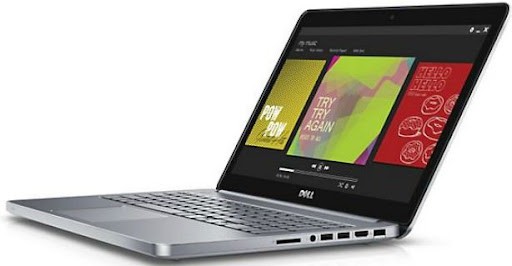
That’s very important for the laptop you want to open. Scalability is not just a feature for tinkerers. You can save money upgrading it yourself, and you can even extend its life – as long as you’re willing to dig a little deeper.
Flip the laptop over, and you’ll see the usual Phillips screws (no hex screws, so no special tool nonsense). Pull those out—also note the rear three, they can only be loosened and then kind of stay in the chassis, don’t force them. After that, carefully lift the cover and you’ll finally get to the inside part.
If you do this yourself, you can save some money, and yeah it may also extend its life a bit.
Inside you’ll spot two RAM slots, a second M.2 PCIe location for an SSD, plus a 2.5-inch bay for a third drive. Once you install just one stick of RAM, you’re basically stuck in single-channel memory mode, and that does affect performance in a noticeable way. Add a second, matching module, and the laptop switches to dual-channel mode, giving you a much quicker memory experience.
Then, if you add a second M.2 SSD, you can set up RAID 0 (striping) or RAID 1 (mirroring) for better speed and more space, and also some useful redundancy, plus improved reliability. And finally, you can install a third storage drive in 2.5-inch format, just for extra capacity.
As we mentioned, that’s an unusual level of access and upgrade for an ultrabook. You have to turn to an expensive high-end laptop like the Lenovo ThinkPad X1 Extreme Gen 2 to find a laptop that lets you add a second SSD with RAID support. Some other laptops like the Dell XPS 15 let you swap out the RAM and SSD (single), but the Inspiron is the only laptop in its class that lets you add up to two drives.
Surprisingly, even if the Inspiron 15 7000 is kinda nicely expandable, it still not too big , or heavy. It comes in at 4.12 pounds, so yeah its lighter than the XPS 15 at 4.5 pounds but also heavier than the ThinkPad’s 3.76 pounds. With a thickness of 0.78 inches, the Inspiron ends up a bit more substantial than a few higher end models, but not really by a lot. You’re not stuck with one of those bulky laptops just to get the upgrade ability.
On top of that, connectivity, which plays a role in how you can equip the laptop, is very good. You get three USB-A ports, plus a USB-C port that supports Thunderbolt 3, there’s also a full-size HDMI 2.0 port, and a microSD card reader. Plug in the Thunderbolt 3 dock and you can link up to multiple 4K displays, along with a bunch of other peripherals, and it works pretty smoothly. Still, wireless performance feels like it’s lagging a step, because you only get Wi-Fi 5 instead of Wi-Fi 6, and Bluetooth is on 5.0.
Performance
I ran our usual performance benchmarks before adding a second 8GB RAM module, and performance – as expected – was disappointing.
For example, before adding the extra RAM, Inspiron managed 1,071 points on Geekbench 5 for single-core mode , and 3,864 for multi-core mode. After adding the RAM , those figures went up to 1,124 and 4,695. Then compare it with the Lenovo Yoga C940 15 that has the same CPU and dual-channel RAM, it scored 1,106 and 5,117.
Honestly the upgrade didnt mess much with the more “real-world” style testing we do. In Handbrake, I encoded a 420MB video to H.265 for content creation performance. Before the upgrade , the Inspiron took 3 minutes to finish the test, then it was 2 minutes and 50 seconds. Meanwhile, the C940 wrapped things up in 2 minutes 17 seconds.
So yeah adding a second RAM module , and switching to dual-channel, pushed Geekbench results up by 12% and brought the laptop roughly up to speed with the competition. But in the Handbrake test the improvement was closer to 6%, not some huge leap. The memory I picked up was from Crucial; an 8GB DDR4-2666MHz stick of RAM sort of just runs around $30. Really overall it feels like one of those budget performance upgrades Ive seen in a while.
When I looked at the SSD side of things, I didnt catch any real difference from the RAM upgrade. The Western Digital PCIe is basically showing the same average speed as the Intel Optane equipped SSD in the Lenovo Yoga C940, and it sits behind the way faster SSD you get in the XPS 15 and ThinkPad X1 Extreme Gen 2.
But if you add a second SSD and set up RAID 0 , then you end up seeing a pretty big jump in storage speed. That’s another kind of performance boost thats pretty rare for an ultrabook and honestly only Lenovo seems to be able to match, more or less.
Dell Inspiron 15 7000- 15 Inch FHD Touchscreen, Intel Core i7, 8GB Memory, 512GB Solid State Drive, Nvidia GeForce GTX 1650 4GB GDDR6, Windows 10 Home (Latest Model) – Silver: Buy it now
Dell Inspiron 15 7000, 15.6” FHD Display, 9th Gen Intel Core i7-9750H, NVIDIA GeForce GTX 1050, 256 SSD HD, 8GB RAM (i7590-7865BLK-PUS): Buy it now
Design and display
Upgradability is good, but the Inspiron still needs to perform as well as a laptop. The good news is that in most cases, it’s a solid offer.
The keyboard is comfortable, has plenty of travel, and the mechanism is flexible. It’s not quite on par with the keyboards of expensive laptops like the XPS 15 and HP Specter x360 15 or the new MacBook Pro 16’s Magic Keyboard, but it’s good enough for fast typing.
The touchpad is also above average, with plenty of space for a Windows 10 trackpad (though not like the large version on the MacBook) and Microsoft Precision touchpad drivers. Windows 10’s multitouch gestures work just fine and are a pleasure to use.
Next, here is the screen . At 15.6 inches, Full HD is, well, a bit less sharp than i would have liked , for real. For me, 1440p or 4K is the more obvious and preferred resolution for these bigger panels, you know the kind. Still, the monitor Dell put in the Inspiron shouldn’t really bother you during normal, day-to-day use. It is quite bright at 323 nits, but the contrast only reaches 820:1, and that’s sort of under the 1000:1 threshold we’d want to see.
The color gamut lands around 74% AdobeRGB and 98% sRGB, but the color accuracy comes in at 4.52 , which is not great since 1.0 or less is usually considered excellent. You really should avoid relying on this laptop if you plan to do exact, precise photo editing.
The panel on the Lenovo Yoga C940 is similar, with better contrast and color accuracy, but then again the color accuracy is slightly less impressive overall. If you want a more nuanced shade range, you’ll likely have to step up to a laptop like the Dell XPS 15 or the Lenovo ThinkPad X1 Extreme.
In the end, battery life also matters, and this is where you make a real compromise for the extra storage option. If you opt for the 2.5-inch drive bay, then you’re limited to a 56-watt battery – like the battery in my review unit. If you give up that bay, then you can fit in a 97-hour battery, similar to the XPS 15.
That harms battery life. The Inspiron fell behind the Lenovo Yoga C940, for example, by an hour in our web browsing test at around 6 hours and in our video loop test by just under 10 hours. However, the Inspiron did surprisingly well in our demanding Basemark web benchmark test at 4:40, an hour longer than the Yoga.
Game performance
My review unit was basically equipped with an Nvidia GeForce GTX 1050 instead of a GTX 1650 , an optional upgrade i guess. The GTX 1050 was pretty popular just a year or two ago, and it delivers a passable , kinda steady experience for casual games plus newer titles, as long as you stick to lower resolutions and toned down graphical details.
I ran our usual gaming benchmarks, and the Inspiron did land pretty much in the same range as other laptops that use the GTX 1050. I noticed around 52 FPS in Fortnite at 1080p with detailed graphics on High , then it slipped to 41 FPS if i set everything to Epic. At the same time, Civilization VI came in at 77 FPS at 1080p on Medium , and then 40 FPS on Ultra.
So, yeah… this isn’t exactly a purpose built gaming laptop, and you should expect reduced resolution and graphics settings.
In a more demanding title like Assassin’s Creed Odyssey, the Inspiron reached about 32 FPS at 1080p and High , but it dropped to something like 17 FPS when Ultra High detail was enabled, which is basically not playable. Overall, these outcomes average around 10-15 FPS less than newer GTX 1650 equipped laptops, including the Dell XPS 15 and the Asus ZenBook 15 UX534. If gaming is something you’ll really do on this machine, you’ll probably want to step up to the faster card.
The Inspirion 15 7591 can hold its own for casual play, and it can even fit in with modern games, but again this isn’t a dedicated gaming laptop, so be ready to trade off resolution and visual quality to get the best experience.
Battery Life
Battery life is one of those things you always end up looking at before buying a laptop, and the Dell Inspiron 15 7000 does pretty well here. It comes with a 4-cell 56Wh battery, so it has enough energy to carry you through a normal workday, at least for most people. In real world use which is mostly web browsing , streaming videos and handling documents, you can expect about 7-8 hours.
If you’re the type that wants more runway, the 11th Gen Intel processors help with power efficiency, basically reducing how much juice gets used during lighter tasks or when the system is just sitting there. Also, Dell’s power management controls and what they call an adaptive battery optimizer can squeeze a bit more endurance out of the same charge, by changing performance according to usage patterns.
It even supports fast charging, so the battery can jump to around 80% in about one hour. That’s honestly handy for people constantly moving around, who need a quick top up between classes , or meetings, or wherever you end up next.
Connectivity
The Dell Inspiron 15 7000 provides a pretty solid mix of ports and connectivity options for different kinds of users. On the left side, you’ll notice:
1 x USB 3.2 Gen 1 Type-C (with Power Delivery + DisplayPort)
1 x HDMI 2.0
1 x USB 3.2 Gen 1 Type-A
1 x 3.5mm headphone/microphone combo jack
On the right side, there are:
2 x USB 3.2 Gen 1 Type-A
1 x SD card reader
1 x Noble lock slot
Adding a USB Type-C port with Power Delivery, and DisplayPort support is a solid win here, it basically gives you more flexible ways to connect stuff, charge too, move data, or even hook up an outside screen. The HDMI 2.0 port helps a lot as well, so it is easy to plug into an external monitor or tv, which feels pretty handy for presentations , and yea for entertainment too.
For wireless, you get Intel Wi‑Fi 6 (802.11ax) plus Bluetooth 5.1, and that combo is meant to keep things quick and dependable. Wi‑Fi 6 brings better speed, range, and also more capacity than older wireless standards , so it usually holds up better in busy networks, and for higher bandwidth tasks where you do not want lag.
Audio
Audio is another place where the Dell Inspiron 15 7000 actually does pretty well. It comes with stereo speakers that are tuned with Waves MaxxAudio Pro, and the end result is sound that feels clear, steady , and fairly well balanced. The speakers are on the bottom of the device, which can cause muffled audio if you place it on a soft surface like a blanket or couch , and still, for most everyday use the audio stays good. So whether you are watching movies, streaming music, or taking part in video calls, it works well enough.
If you want a bit improved sound , the 3.5mm headphone jack is there as a straightforward choice for plugging in headphones or even external speakers , depending on what you’re using. Also , the laptop comes with built-in dual-array microphones, which really help with clear voice pickup , so it usually does a better job during video conferencing, voice calls and similar stuff.
User Experience
Honestly the overall user experience with the Dell Inspiron 15 7000 is pretty positive , mostly because it blends strong performance with a clean looking design, and also includes useful features. The keyboard feels comfortable for long typing sessions , and the backlighting helps a lot when the lighting is low, like in cafés or at night. The touchpad is responsive too, it supports multi-touch gestures , so moving around feels smooth. k inda natural actually.
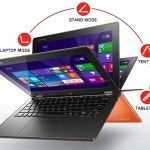
Then there’s the 2-in-1 approach in certain configurations, which gives it more ways to fit your day. With the 360-degree hinge, it can be used in laptop mode, tent mode, stand mode, or tablet mode. That flexibility is handy for people who bounce between typing, presenting, and even drawing, like it’s not always the same routine.
Software
The Dell Inspiron 15 7000 comes with Windows 10 Home or Windows 10 Pro already installed, depending on what you pick. Windows 10 is familiar enough, and it’s fairly easy to deal with, plus it gives access to lots of apps and services. Dell also bundles a few utilities, including Dell Mobile Connect for smartphone integration that feels seamless, and Dell Power Manager, which helps fine tune battery performance.
That said, even though the pre-installed stuff is often helpful, some users might feel that extra third party applications are kinda bloaty and not really needed. The good news is you can uninstall them without too much trouble, so system resources and storage have more room to breathe.
Conclusion
Honestly the Dell Inspiron 15 7000 feels like one of those laptops that can do a lot without too much fuss. It’s stylish, the build quality feels solid enough, and the specs are kind of stacked for its class, so it works for a lot of different people. Depending on the configuration you go for, with Intel’s 11th Gen Core processors, up to 16GB of RAM, and fast NVMe SSD storage, it delivers dependable speed not just for office work but also for multimedia, and even casual gaming , when you want that sort of thing.
The 15.6-inch Full HD IPS screen looks lively with good color and wide viewing angles. If you choose the optional 4K UHD display, the visuals get sharper , and the color accuracy improves noticeably. On the ports side, the USB Type-C connection that supports Power Delivery plus DisplayPort is really handy. Together with the other connectivity options, it makes the laptop easier to match with different setups, docks, and monitors.
Battery life is pretty reasonable for a normal day, and the fast charging feature is a nice bonus when you’re moving around a lot. The keyboard and touchpad feel comfortable and responsive, and the 2-in-1 design adds extra flexibility for different ways of using the device, not everyone needs that but it’s there.
Even with competition from other models in the same range, the Inspiron 15 7000 still manages to stand out, mainly because of its performance options, sturdy build, and overall feature set. In the end it gives good value for money so it’s a credible pick for students, professionals, and casual gamers, all at once.
Related Posts


Tech Reviewer & Product Analyst
Định Bia has spent over 10 years testing consumer electronics with a focus on smart technology. He work as a product advisor at Biareview where he helped customers find the right devices for their needs. He personally tests every product featured on this site using a consistent evaluation framework covering quality, durability, and value. All reviews are based on experience, not influenced by the manufacturer.