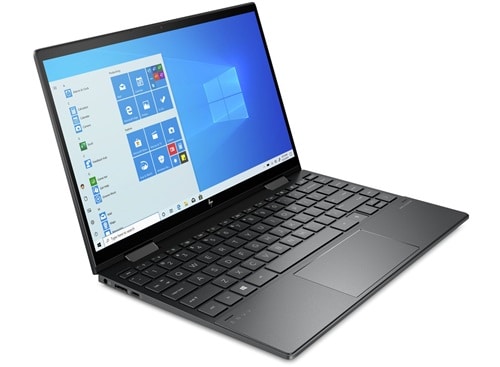
The new HP Envy x360 13 laptop still possesses a luxurious, ergonomic design with the ability to rotate the screen 360 degrees, along with a powerful hardware configuration with AMD’s Ryzen 7 processor use the best experiences at work as well as multimedia entertainment.
Luxurious and high-class design
Like the previous generation, the most prominent highlight in the design of the new HP Envy x360 13 is nothing but the hinge capable of rotating up to 360 degrees as its name suggests. This not only allows users to rotate the screen at an arbitrary angle for more convenient use in many different conditions but also “turns” this laptop into a large screen tablet in just a few seconds ticked by the touch screen.
In general, the overall machine is a neat and elegant design style, emphasizing flexibility, and rigidity with very sharp lines. Since then, the device becomes more luxurious and helps users feel more secure when used by the extremely solid design that the machine offers.
Quality touch screen
The versatility of the new HP Envy x360 13 laptops is also demonstrated through the multi-touch screen, allowing you to directly touch the screen with your finger to manipulate the components directly calculate more quickly.
Colors are displayed vividly, and details are clearly presented, making your viewing experience even better.
Keyboard and touchpad
In general, the keyboard on the Envy series I do not appreciate very much, the keys are quite shallow, the experience is only normal, not outstanding. The backlit key is a plus point to help you work even in low light conditions. Unfortunately, the manufacturer only allows you to turn it on or off through the default keyboard shortcuts, not for tweaking to reduce or increase the brightness as you like.
For the TrackPad, this mouseover is a bit small and a bit cramped because the manufacturer has deliberately done so to minimize the size of the device. Overall, the experience is pretty good.
The strong performance with AMD Ryzen processor
HP Envy x360 13 laptop possesses quite a powerful hardware configuration so that for the work of office work or a playing light games, the machine is responsive. It s powered by that 8-core AMD Ryzen 7 2700U cpu running at around 2.2GHz. You get 8GB RAM, so multitasking feels comfortable, and there are 256GB SSD hard drives with a pre installed Windows 10 license, operating system that helps everything respond quickly smoothly, and with out noticeable latency.
Real test
First, with the familiar 3DMark tool, the graphics score of the machine is very good, about 1.6 times higher than the integrated Intel UHD Graphics 620 solution of the 8th generation Intel chip. However, the CPU partial score is lower. Core i7 Whiskey Lake series 8565U, on par with the i7-8550U.
However, through the Cinenbech R20 software measuring the processor’s rendering capabilities, the Ryzen 7 2700U is slightly better than the Intel Core i7-8565U score. This is probably due to the recently released Cinebench R20, so it has an optimal update for the latest generations of processors including AMD.
The results with PCMark 10 show that the machine has good overall performance, sufficient to meet many common needs of users, including basic photo and video editing. In addition to the performance Benchmark tools, I also try the power of the device with familiar eSports games that are being played by many players
With League of Legends, the machine can weigh well at Full HD resolution, maximum configuration, the average frame rate is still around 60 FPS, completely good for the MOBA game genre.
With the DOTA2 game, I also tried at Full HD resolution, but only at medium settings, the machine achieved an average of 37 FPS, in fact, with the MOBA game genre, this frame rate is still playable, however, In order to be smoother in the total combat, in my opinion, you should lower the HD resolution to have a much higher frame rate.
With the game CS GO (Counter-Strike: Global Offensive), if you adjust to HD resolution, low setting, the frame rate will be around 60 FPS. Although 60 FPS is normal with other games, with CS GO gamers often require very high frames (usually 100 FPS), the HP Envy x360 is still temporarily playable but not ideal for this game.
Newest HP Envy X360 2-in-1 13.3″ FHD IPS Touchscreen Thin and Lightweight Laptop, AMD Ryzen 5 Quad-core 2.0 GHz, 8GB DDR4 RAM, 512GB SSD, Backlit Keyboard, USB-C, WiFi, Bluetooth, Windows 10: Buy it now
Temperature
The heat issue is probably quite a lot of you are concerned about due to the old belief that AMD is the default hot default
As you can see here I run 3DMark, a tool that squeezes most of the CPU and GPU processing capabilities, the average temperature is only 58-59 degrees Celsius, completely on par with the version using Intel processors never hotter. The surface temperature of the hand contact part of the machine is also quite cool, only slightly warm on the speaker and the top small function keys so it does not affect the experience.
Performance
Powerful Hardware
The HP Envy x360 13 runs on AMD Ryzen 5 and Ryzen 7 chips, so you can pick a different kind of speed depending on what you do. You get the Ryzen 5 4500U and the Ryzen 7 4700U, both built on AMD’s Zen 2 architecture ,and yes they really do well in terms of raw output and also power savings. These CPUs are teamed up with as much as 16GB of DDR4 memory and up to 1TB of PCIe NVMe SSD storage ,which helps everything feel quick during multitasking and also keeps file access pretty snappy.
CPU Performance
In day to day use, the AMD Ryzen 5 4500U and the Ryzen 7 4700U feel pretty capable across a lot of ordinary stuff. The 6 core Ryzen 5 4500U is pretty much ready for typical tasks like browsing the web, editing documents, and stream ing or watching media. Once you step into heavier work ,the 8 core Ryzen 7 4700U gives more headroom, so it works well for video editing coding and even a bit of light gaming too. And honestly, both chips are often praised for solid performance per watt, so the overall system stays reasonably efficient even when the workload is less relaxed.
GPU Performance
For graphics, the built-in AMD Radeon solution is fine for casual gaming and general graphic tasks, it’s not trying to be a high end battlefield GPU. Still, it can manage less demanding games ,and it handles everyday creative apps in a pretty smooth way. If you really need serious graphics horsepower, then the Envy x360 13 probably won’t be the perfect match, but for many users it lands in that nice middle ground between speed and efficiency, no big drama.
Storage and Memory
The HP Envy x360 13 comes in different setups, with as much as 16GB of DDR4 RAM, and up to 1TB of PCIe NVMe SSD storage. That snappy SSD means quicker startup, faster app opening, and generally smooth handling when you’re dealing with larger files. At the same time the roomy RAM supports multitasking really well, so it’s easier to bounce between several applications without a lot of noticeable lag, or at least not much slowdowns. Overall, these parts fit nicely for day to day productivity, hands on creative sessions, and most everyday routines.
Battery Life
Long-Lasting Battery
Battery life really matters a lot if you’re trying to get a portable laptop, and the HP Envy x360 13 does pretty well on that side too. It comes with a 51Wh battery, so it can run for about 11 hours on a single charge, though it depends on what you’re actually doing, the system settings, and how you set everything up. If you’re hoping for something dependable for all day use , for work , school , or even trips, this looks like a solid pick.
Real-World Battery Performance
In actual everyday situations, the battery performance won’t be the same for everyone, and it changes with the kind of tasks you run. If you’re doing the basics, like web browsing, editing documents, or streaming video, the laptop can usually stretch through a full workday without feeling like you need a charger right away. If you start pushing heavier workloads, like video editing , or gaming , the battery drains faster, but the machine still holds up with a pretty decent, steady experience overall.
Fast Charging
The HP Envy x360 13 does support fast charging, so the battery can reach 50% capacity in around 30 minutes ( roughly, depending on use ). It’s pretty handy when you need to quickly add a bit of power between meetings, or during those short breaks when you don’t want to sit and wait. The included 65W charger does the job with solid efficiency and steady reliability, meaning the laptop is usually ready to go when you need it.
Connectivity and Ports
Broad Connectivity Choices
Even with its slim, compact build the HP Envy x360 13 still brings a sensible mix of ports and wireless options. Overall it covers the usual day to day situations, plus a few extras if you’re switching between devices.
USB Ports and HDMI
You get two USB 3.2 Gen 1 Type-A ports, and then plus one USB 3.2 Gen 1 Type-C port that does Power Delivery as well as DisplayPort, support. There’s also an HDMI 2.0 port, so linking to outside displays is pretty straightforward, in general. The USB-C role isn’t only charging, it also supports quick data transfers , and video output, so it’s more versatile for different setups. Meanwhile the HDMI connection helps with presentations, dual screen style work, and even multimedia playback without extra fuss.
Audio and MicroSD Card Reader
For audio, the laptop includes a 3.5mm headphone, microphone combo jack , so you can plug in a headset or use it for voice input. Then there’s a microSD card reader which is genuinely useful for people moving files often, like photos from cameras, transfers from smartphones, or any device using microSD storage. It gives you a quicker path to expand available space, or move data over, without reaching for another adapter, or dealing with dongles that take up room.
Wireless Connectivity
The laptop comes with Wi-Fi 6 (802.11ax) and Bluetooth 5.0 , which ends up delivering fast , and yes also dependable wireless connectivity. Wi-Fi 6 brings noticeably stronger results when networks are busy, it can push higher data rates and tends to sip less power, so it fits well with today’s wireless situations. Bluetooth 5.0 meanwhile keeps wireless gear connected in a steady way , for example headphones, mice , and keyboards.
Keyboard and Touchpad
Comfortable Typing Experience
The keyboard on the HP Envy x360 13 feels pretty comfortable and it reacts quickly when you type. The keys are spaced out in a good way, and there’s a solid amount of key travel, so typing for longer stretches doesn’t get uncomfortable too fast. The backlit keyboard is also a neat little bonus, especially when you’re working in dim rooms, since the keys stay visible and easy to use, even when the light is low.
Precision Touchpad
The touchpad on the Envy x360 13 is responsive and fairly precise, mainly because Windows Precision drivers do their job properly. It’s sized well enough, so you get comfortable space for navigation and gesture control. There’s also multi-touch support, which makes it easy to do things like scrolling, zooming , and switching between applications without much fuss.
Additional Keyboard Features
So this keyboard kinda has dedicated keys for volume control , screen brightness , and media playback, which makes it easier to reach for stuff you actually use a lot. Also there is a fingerprint sensor on the keyboard deck, and honestly it feels like an extra nice touch. It gives you that additional security and convenience thing, so you can sign in fast and securely with Windows Hello, without doing the usual password routine.
Audio
High-Quality Speakers
On the HP Envy x360 13, the speakers are dual and tuned by Bang & Olufsen, so the sound for a 13-inch laptop stays really solid. You get clear , balanced audio, and it covers the usual range pretty well , mids highs and lows all feel properly handled. The bass might not hit as deep as what you’d expect from bigger systems, but for this class it’s still impressive overall. Whether you’re watching movies, streaming music, or jumping into video calls the audio experience stays more than satisfactory . The speakers sit above the keyboard, so the sound is aimed toward you, which makes the listening feel more direct and pleasant.
Audio Software Enhancements
The HP Envy x360 13 also comes with HP Audio Boost and Bang & Olufsen audio control software, and it lets you sort of tweak your sound the way you like it. There are several presets and equalizer options, so you can sharpen the audio quality depending on what you are doing, like listening to music, watching movies , or joining voice calls. With solid hardware underneath, and this kind of configurable software on top, users usually get a more satisfying audio experience from the device, in a way that feels pretty adjustable.
Webcam and Microphone
HD Webcam
The HP Envy x360 13 includes a 720p HD webcam. It is generally enough for video conferencing, plus casual video chats. The image looks fairly clear with decent detail, but in dim spaces it can feel a bit less steady, like low light is not its favorite thing. Most people will find it fine, but if you need sharper resolution for more professional work, then an external webcam could be the better move, instead of relying only on the built-in one.
Integrated Microphone
For audio input, the laptop uses dual-array microphones that pick up your voice with clear, crisp sound. They are built to reduce or filter background noise, so during calls , and also while recording, your speech stays more prominent. Because of that, the Envy x360 13 feels well-suited for remote work , online classes, and virtual meetings, where dependable communication audio matters.
Privacy Features
For extra security and privacy, the HP Envy x360 13 includes a real physical webcam kill switch. This feature allows users to switch off the webcam when it’s not needed, so any unauthorized access is less likely, and personal privacy is kept more protected. Honestly this small thing is pretty valuable, especially for people who are worried about their privacy, and also about possible webcam hacking, or anything kinda similar.
Software and User Experience
Windows 10 and pre installed Software
The HP Envy x360 13 arrives with Windows 10 Home already installed. That means you get a familiar, kinda straight forward operating system right away. Windows 10 includes a lot of features and functional options, so the device works well for both productivity, and entertainment moments. On top of that the laptop includes a set of pre-installed software, among them HP’s own utility apps. These apps give extra tools and settings, for managing the device more comfortably.
HP Command Center
One of the more notable pre installed apps is HP Command Center. It helps users optimize performance, manage fan speeds, and keep an eye on system health. Within the app you can pick performance styles like Performance, Balanced and Cool, which basically lets you decide what fits your current tasks. HP Command Center also supports network optimization and battery management, which makes the whole day to day experience feel smoother.
Bloatware
So, while the HP Envy x360 13 has some helpful pre-installed software, it also kinda brings along quite a bit of bloatware. You know, third-party apps and trial versions that really might not be needed by everyone. The good part is most of it can be uninstalled without too much hassle, so you can free storage and basically tidy up the device a little, rather than having stuff sitting there.
Security Features
Fingerprint Reader
The HP Envy x360 13 comes with a fingerprint reader built directly into the keyboard deck. This biometric security arrangement lets you sign in faster, and in a more protected way , with Windows Hello. It feels quick in use and seems accurate too, which makes it a convenient, safe method to access the laptop, no need to type a password, every single time
Webcam Kill Switch
And yeah, as mentioned earlier, the physical webcam kill switch is a solid privacy focused feature . It disables the webcam when it isn’t being used, so you’re not accidentally broadcasting yourself. That also blocks unwanted access, giving users more calm, especially if you’re pretty concerned about online privacy stuff.
BIOS Protection
HP comes with BIOS-level security features meant to keep the laptop safer from firmware attacks, more or less. The HP BIOSphere Gen5 does the whole automated updates and security checks thing, so the system firmware stays secure , and also remains up to date. In practice this should add another layer of protection against possible vulnerabilities and threats that you might not even notice until later.
Conclusion
Overall Impressions
The HP Envy x360 13 is honestly a pretty impressive 2-in-1 laptop. It shines in design, performance, and just general versatility. The look is sleek and stylish, while the build quality feels solid and robust, so it comes off as a premium device that is easy to carry , but also not fragile. You get that 360-degree hinge plus the touchscreen setup, and it makes it easier to switch modes for different routines. Basically, it fits productivity , creative work, and even entertainment without feeling like a compromise.
Strengths
Design and Build Quality: the all-metal chassis and minimalist approach give the laptop a clean premium appearance, and it feels good too.
Display: the vibrant Full HD IPS touchscreen provides strong visuals , with decent color accuracy and brightness.
Performance: AMD Ryzen processors bring solid power for a broad set of tasks, from everyday stuff to heavier workloads.
Battery Life: the battery lasts a long time and the fast charging helps , so it’s a dependable option for day-long use.
Versatility, the 360-degree hinge plus the touchscreen controls and pen support, makes it easier to juggle different modes, various assignments, and keep everything running smoothly.
Security Features: the fingerprint reader along with the webcam kill switch adds an extra bit of security, plus some privacy.
Areas for Improvement
Webcam Quality: It’s okay for casual calls, but the 720p webcam might not satisfy users who want sharper video, and stronger clarity overall.
Related Posts


Tech Reviewer & Product Analyst
Định Bia has spent over 10 years testing consumer electronics with a focus on smart technology. He work as a product advisor at Biareview where he helped customers find the right devices for their needs. He personally tests every product featured on this site using a consistent evaluation framework covering quality, durability, and value. All reviews are based on experience, not influenced by the manufacturer.