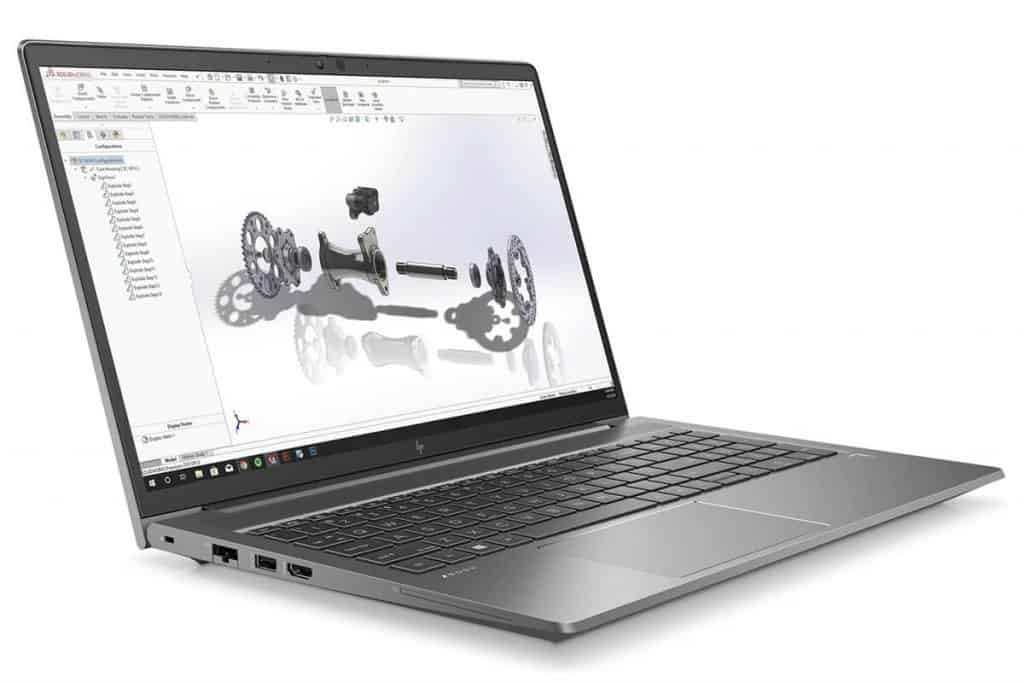

- Design style and finishing quality
With the main body made from aluminum metal, this laptop model is extremely solid and sturdy. We rarely see creaking or flex when impacting the frame and lid. But the ZBook Power G8 is not too heavy, only 1.9kg, and the thickness is about 2.28cm. In terms of design, we appreciate the modern minimalist look of the product: square, rounded corners, and sharp finishing.
In the middle of the lid, there is a prominent Z logo and a hinge for easy one-handed opening of the lid. On the C side of the machine, the upper space is the speaker, and below is the keyboard with a long keystroke and smooth and responsive feedback. The bottom of the device has a Led backlight and is resistant to water spilling into the machine if careless. The touchpad has a large size, for smooth and accurate multi-point swiping, and fast clicking.
- Upgradability
In the ZBook Power G8, there are two SODIMM slots, which can support upgrading to up to 64GB of Ram. For storage, there are two M.2 PCIe slots (one of which is Gen 4), both with RAID support.
- Display the quality of the screen
The laptop has two resolution options, Full HD and 4K, both with 15.6-inch screens and IPS panels. The screen we tested is Full HD for wide and comfortable viewing angles, the brightness in the middle of the screen measured a maximum of 390 nits, and the surrounding space had an average brightness of 382 nits, with deviations of only 5% max and contrast ratio is 1650:1
In terms of color coverage, the ZBook Power G8 (FHD IPS screen code AUO AUOA08B) reaches 99% of the sRGB color gamut.
The machine screen has high color accuracy with the factory setting of the machine from the factory. So when we tried setting up our Design and Gaming color profiles, it was easy to work with and reduced chromatic aberration to as low as 0.8 dE.
- Battery life
With an 83Wh battery, in the test with Windows’ Better Performance settings, the screen brightness is adjusted to 120nits, turning off all programs that only run our test program, then this laptop model gives 8 hours 28 minutes surfing the Web, and 13 hours 31 minutes watching videos.
- Connection port
The connection port on the machine is reasonably arranged, supporting both Thunderbolt 4, in addition, there are 3 USB-A 3.2 ports (Gen 1), an RJ-45 network port, an HDMI port, and a headphone jack with a 3.5mm mic. But there is no SD or microSD card slot, which is quite necessary for many users.
But that’s not too big of a problem when we can buy hubs that support memory card reader slots.
Software and Security
For professional users, the operating system and supporting software matter a lot, like not just “runs apps,” but the whole way the machine behaves during busy workdays. So, the OS should be specified clearly, for example Windows 11 Pro, or Windows 10 Pro, or Ubuntu (if your workflow is Linux-first). With Windows 11 Pro you get business-friendly management tools, smoother device deployment, and a solid productivity baseline for daily collaboration. Ubuntu also brings a more flexible environment for developers, IT teams, and technical tasks, usually with strong stability and predictable performance patterns. In both cases, the goal is pretty simple, less downtime, better compatibility, and faster routine work.
Now, HP Performance Advisor is a pre-installed set of utilities meant for system tuning and day-to-day visibility, not just a “nice-to-have.” It helps with system optimization suggestions, performance monitoring so you can spot slowdowns sooner, and driver updates to keep hardware operating cleanly. In practice, it acts like a companion that watches the system quietly, then nudges you when the configuration could be improved. That means less guessing, more confident maintenance without too much manual effort.
On the security side, the enterprise-grade features should be spelled out too. Look for TPM 2.0 support, BIOS security options, and privacy controls that reduce exposure when you’re handling sensitive work or switching between different apps and environments. TPM 2.0 helps with hardware-based protections for credentials and encryption, BIOS security helps prevent unwanted firmware changes, and privacy controls give you more control over what information certain features or sensors can access. Overall, it’s about protecting both the data and the user, not only in theory, but in normal real-world usage.
Keyboard and Input Devices
So, you kinda want to check the keyboard , the touchpad, and any extra input devices you might add, just to be sure it feels right and keeps you working without odd interruptions.
For the keyboard: think about key travel depth, how solid or “springy” the typing feedback feels , like does each press feel clear. Also, see what kind of backlighting options it has , because that can matter a lot in dim rooms. And then there’s customization , like remapping keys, adjusting shortcuts, and whether it supports profiles so your usual layout stays consistent.
For the touchpad: look at how precise it is when you’re scrolling or selecting small stuff, and whether gestures are actually reliable. Daily tasks should feel smooth, so test pinch, swipe, and any multi-gesture controls , not just the basics.
Optional accessories: you may also want to consider docking station compatibility, especially if you use a monitor setup, plus whether an external keyboard fits nicely into your workflow. If you do sketching or take notes, a stylus pen can be a really helpful add on, depending on what your device and software support.
Audio and Multimedia Experience
Take a look at the laptop sound stuff and how it handles multimedia overall, like are the speakers actually solid or just “okay” in a quiet room. The Audio Quality side should cover what you can expect from the sound output, for example whether there are Bang & Olufsen speakers or some other tuned driver setup. It also helps to mention if there are enhancements for movie playback and music, plus any noise control or voice shaping options that make conference calls clearer, especially when the room gets a bit messy.
On the Multimedia Features part, you’ll want to talk about the webcam quality, like resolution, autofocus behavior, and whether the picture looks crisp in low light. Then the microphone array, if it’s truly beamforming and helps separate your voice from background noise. For video conferencing capabilities, include whether the laptop supports common platforms smoothly, what the latency feels like, and if there are extra AI-driven tuning modes for meetings, screen sharing , or remote collaboration. Basically, can it keep calls stable even when the network or background tasks are doing a lot.
Now for Ergonomics and User Experience, focus on how it feels day to day for professional use, what the typing experience is like, how comfortable the chassis sits, and if the build holds up over time without getting all wobbly or creaky. Also consider how easy it is to operate the device in travel situations, like whether the ports are placed well and how the display hinges behave after lots of open close cycles.
For heat management, you want to look at thermal dissipation in kind of a real world way. Like, you check if the device has a dual fan cooling system and also if there’s vapor chamber technology, not just a marketing phrase. Then the real question, does it actually hold sustained performance steady when you throw it into heavy use for a while , or does it sag. Basically, does the laptop throttle quickly, dropping clocks fast , or does it keep the frequencies running longer. And yeah, pay attention to how loud the fan gets during more intense tasks, because that noise level can hint at how hard it’s working.
For Durability Features, highlight anything rugged or reliability-minded. Like a spill-resistant keyboard, reinforced hinges, and whether it includes rugged design elements intended for long-term use. If the laptop has reliability certifications , drop them here too, and explain how that translates to real life, for example surviving day-to-day abuse, dusty environments, or frequent transport without the usual long-term wear.
Performance in Professional Workflows
Discuss real-world performance benchmarks and usability in professional applications:
Software Compatibility: look at how it plays with the usual industry tools, like Adobe Creative Suite, and Autodesk AutoCAD , then add on performance tuning for the kind of work you actually do day to day.
Rendering and Simulation: cover how it holds up when you push 3D rendering, CAD modeling, scientific simulation workloads and even virtualization tasks. Mention those results, and the day to day responsiveness, not just the raw numbers.
Conclusion
So, in the end, you’re basically summing up what the HP ZBook Power G8 does best, plus the measurable performance benchmarks and whether it really fits professional people who need reliability.
Pros: point to the stand-out elements, the performance muscle, and the productivity upgrades that show up in real workflows.
Cons: don’t ignore the tradeoffs, like battery life considerations , or any weak spots where it could be improved a bit more.
Final Verdict: recommend it based on performance consistency, build quality, security features, and the overall value angle for anyone shopping in the mobile workstation market.
Smart Buy ZBOOK Power G8 I7-11800H 15.6 16GB W11P64 DG W10: Buy it now
Custom ZBOOK Power G8 I7-11850H 15.6IN 32GB 1TB: Buy it now
Related Posts

Tech Reviewer & Product Analyst
Định Bia has spent over 10 years testing consumer electronics with a focus on smart technology. He work as a product advisor at Biareview where he helped customers find the right devices for their needs. He personally tests every product featured on this site using a consistent evaluation framework covering quality, durability, and value. All reviews are based on experience, not influenced by the manufacturer.